.avif)
Sales Navigator filters: how to find the right B2B buyers
Sales Navigator filters work best for finding B2B buyers when you set them in a fixed order. Start with account filters that decide which companies can afford you (headcount, industry, headquarters location), then add person filters for the one who signs (job title, function, years in position). Use Boolean keywords to clean up titles, and signals like Changed jobs to decide who goes first. Then check 20 profiles by hand before you send anything.
If your Sales Navigator lists keep filling up with juniors, tiny companies and people in the wrong country, this guide is for you. By the end you'll have a saved search that matches your ideal customer, three Boolean strings to copy and a 20-profile check.
What are lead filters and account filters in Sales Navigator?
Sales Navigator has two searches. Lead search finds people and filters them by role, company, location and activity. Account search finds companies and filters them by size, industry, location and growth. Use account filters to decide which companies are worth your time, and lead filters to find the person inside those companies who can say yes to what you sell.
LinkedIn's help page on lead and account filter definitions groups the filters like this:
| Search | Filter group | Example filters |
|---|---|---|
| Lead | Company | Current company, Company headcount, Company headquarters location |
| Lead | Role | Function, Current job title, Seniority level, Years in current position |
| Lead | Personal | Geography, Industry, Profile language, Years of experience |
| Lead | Buyer intent | Account has buyer intent, Following your company, Viewed your profile recently |
| Lead | Best path in | Connection, TeamLink connections of, Past colleague |
| Lead | Recent updates | Changed jobs, Posted on LinkedIn |
| Lead | Workflow | Account lists, Lead lists, Persona |
| Account | Company attributes | Company headcount, Company headcount growth, Headquarters location, Industry, Department headcount, Annual revenue |
| Account | Spotlights | Job opportunities, Recent activities |
One difference is easy to miss. Lead Geography is where the person is located, while Headquarters location is where the company is based, and LinkedIn lists them as separate filters.
Take a fictional example. Jana, Head of Marketing, lives in Vienna and works for a company headquartered in Munich. A search on Geography = Germany misses her, and a search on Headquarters location = Germany finds her. So decide which one matters for your offer: the person's location for on-site workshops, the headquarters for a retainer the company signs.
You can also connect the two searches. Build a list of fitting companies in account search, save them to an account list, then run a lead search with the Account lists filter so you only see people at those companies. That keeps the company decision and the person decision apart, which makes mistakes easier to trace.
Email verification, extra contact data and the final call on fit need more than Sales Navigator. Our lead list building guide covers those steps with more than one tool.
Which Sales Navigator filters should you set first?
Set the account filters first: company headcount, industry and headquarters location. These three decide whether a company can buy and afford what you sell, so they belong at the start. Add company headcount growth or department headcount only when growth or an existing team is part of your ideal customer profile. Leave job titles for later, once the companies are right.
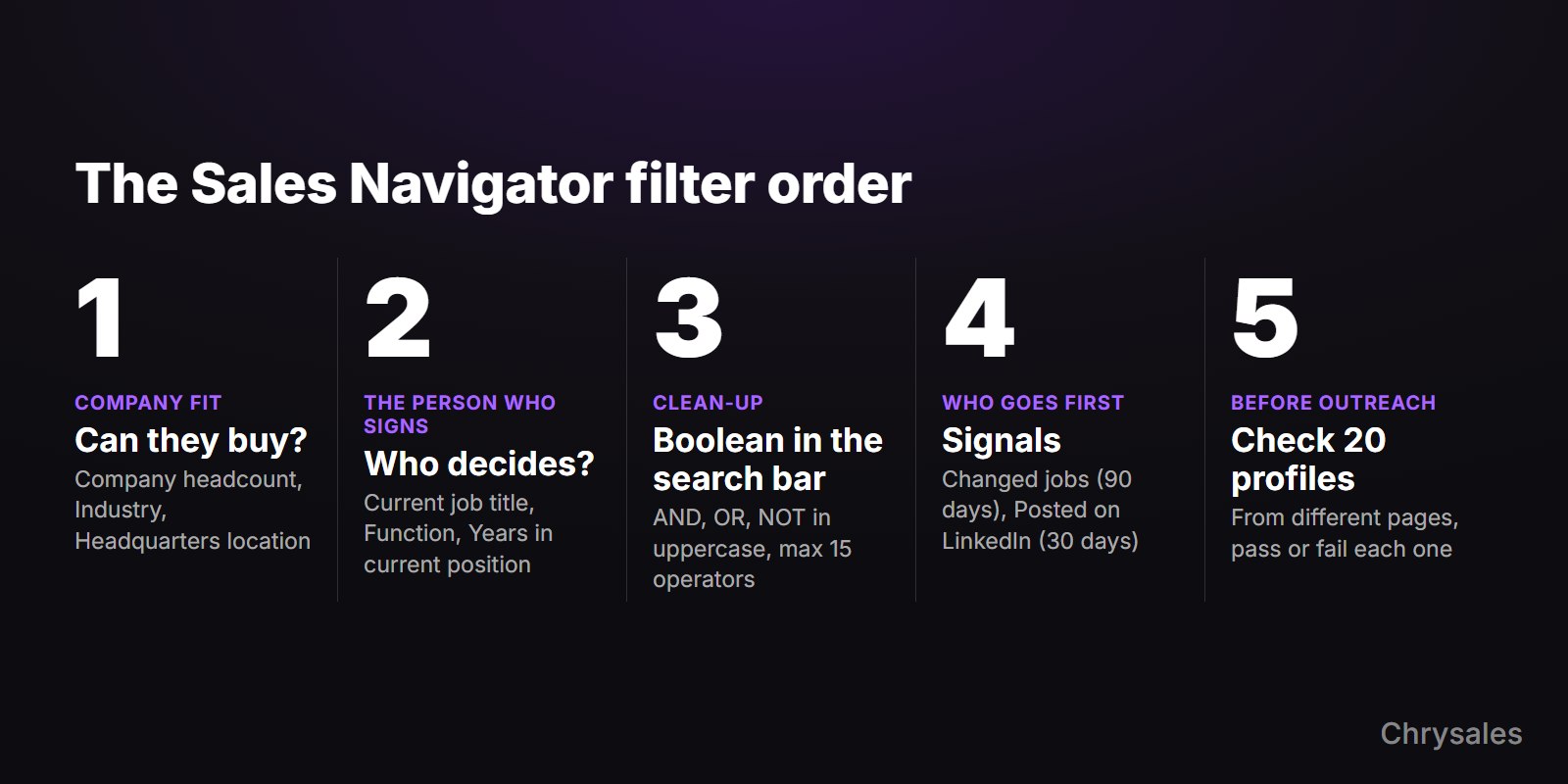
Before you touch a filter, write down who your buyer is. Look at your best past clients and note what they had in common: size, industry, country, the role of the person who signed. If you can't describe that in two sentences, define your ideal customer profile first. Then pick one segment, get it right, and only then expand.
In this tutorial of about 6 minutes, Chrysales founder Sabir Naghiyev covers how to define a strict ideal client profile, the criteria to filter prospects by and how to add location targeting. The video is about finding qualified leads with AI, so watch it for the ideal-client part, then come back and set the filters here.
Take an example ideal customer: a B2B company with roughly 11 to 200 employees in Germany, Austria or Switzerland. The buyer is a founder, owner or managing director at the smaller end, and a head of sales or marketing at the larger end.
Set the account filters in this order:
- Company headcount: select the size ranges your past clients fall into. Check the range options in your own account rather than copying them from an old guide.
- Industry: pick specific industries, not only the broad parent. LinkedIn uses more than 400 industries aligned with NAICS, the North American industry classification, and in account search a parent industry also includes its child industries.
- Headquarters location: add the countries or regions where your buyers are based, for example Germany, Austria and Switzerland.
- Company headcount growth (optional): employee growth over the last 12 months. Useful when your offer suits growing companies, such as recruitment work.
- Department headcount (optional): employees in one department. Useful when your offer needs an existing team, such as sales training.
- Check the result count. If the number is huge, narrow the industry first. If it is tiny, widen the headcount or the region before you remove anything else.
Headcount numbers need a second look on borderline companies. LinkedIn's help page on Company Page members says the member count on a Company Page can take up to 30 days to update. When a company sits on the edge of your range, open its company page and website before you count it in.
Experts split on the order. Mike O'Neil, a LinkedIn coach quoted in LinkedIn's Club Navigator roundtable recap from 2026, is on the account-first side: start broad with industry and location and save job titles for last. Chris Cozzolino, writing on the LinkedIn Sales Blog in 2022, sets the title at the start, alongside geography and company. He also picked the Title filter as the one filter he would keep if he could only have one.
Our view: go account-first. A perfect founder title at a company that is far too small or far too large is still a no. Both experts rate the title filter highly. They differ on when to set it.
How do you find the decision-maker inside those companies?
Inside companies that fit, use Current job title for the exact role, Function to stay in the right department, and Years in current position to set how long someone has held the role. Treat Seniority level with care, because practitioners disagree about how reliable it is. Then watch out for people with several current jobs. They are a common reason the wrong people end up on a list.
Build one list per buyer type. A founder of a 10-person company and a head of sales at a 200-person company have different problems, and one message won't fit both.
Current job title is the filter for the exact role that signs. Type the titles your past buyers held, then add Boolean keywords in the search bar to catch variations. Function is LinkedIn's category for the department, such as Sales or Marketing. Run the search once with Function and once with titles only, and drop Function if it misses clearly right people.
LinkedIn describes Seniority level as a way to find leads matching your ideal customer profile. Use it cautiously: mainly to exclude junior levels, and skip it when you already have a precise title.
Years in current position helps when a new leader is likely to buy your offer early, so combine a short tenure with Changed jobs. For settled owners, leave it open. Geography is where the person is located, for offers where that matters more than the company's headquarters. Profile language is worth a test when your outreach is in German and you want German-speaking profiles in Switzerland or Austria.
The Seniority level filter is where the disagreement is loudest. Chris Cozzolino wrote on the LinkedIn Sales Blog: "The more I created searches, the more I realized how unreliable it is." Test it yourself. Run your search with and without Seniority level, and compare the profiles that drop out.
Once your geography, current job title, seniority and function settings work, you can save them as a Persona and reuse it with the Persona filter in later lead searches. Personas are defined only by those four. According to LinkedIn's Personas FAQ, you can have a maximum of five Personas at a time, so keep them for your main buyer types.
A frequent source of false positives is people with more than one current job. A person can match the title "Owner" from a small side business and the headcount from their day job, and franchise organizations show the same problem; broad titles make it more likely. LinkedIn's Club Navigator recap of Mike O'Neil's roundtable puts it simply: "Searches would be simple if everyone had just one job, but often they don't."
The fix is manual. When you check profiles, confirm that the matching title belongs to the company you targeted, not to a second role somewhere else.
How does Boolean search work in Sales Navigator?
Boolean search combines keywords with AND, OR and NOT, typed in uppercase in the Sales Navigator search bar above the results. Put phrases in quotation marks, group alternatives in parentheses, and stay within 15 operators per search. Wildcards such as an asterisk aren't supported. Keyword results can include related variations, so check a sample of profiles after every change.
The rules from LinkedIn's help pages, in one place:
- AND means both terms must match, OR means either term can match, and NOT removes a term.
- Type the operators in uppercase letters.
- Quotation marks keep a phrase together, such as "head of sales".
- Parentheses group terms, so you can combine a list of titles with a list of exclusions.
- Wildcards don't work, so write out each variation you want.
- Sales Navigator allows a maximum of 15 Boolean operators in a single search query, according to LinkedIn's help page on Boolean limits.
LinkedIn's help pages only mention Boolean for the search bar, not for the Current job title filter. So paste the three strings in this section into the search bar and set headcount, industry and location as usual.
Each NOT term can remove more people than you expect. Add exclusions one at a time and watch how the result count changes after each one.
Template 1: founders, owners and managing directors
(founder OR "co-founder" OR owner OR "managing director" OR CEO) NOT (assistant OR intern OR student)This uses 7 of the 15 operators. Pair it with your headcount range and headquarters location so the search stays inside companies that can buy.
Template 2: heads of sales and marketing
("head of sales" OR "head of marketing" OR "sales director" OR "marketing director" OR "VP sales" OR CMO) NOT (assistant OR intern OR coordinator)This uses 8 operators. If your buyers sit in both functions, run two searches, one for sales and one for marketing, so each list gets its own message.
Template 3: German titles for DACH
(Geschäftsführer OR Geschäftsführerin OR Inhaber OR Inhaberin OR Gründer OR Gründerin OR "Managing Director") NOT (Praktikant OR Werkstudent OR Assistenz)In English: Geschäftsführer/Geschäftsführerin = managing director, Inhaber/Inhaberin = owner, Gründer/Gründerin = founder, Praktikant = intern, Werkstudent = working student, Assistenz = assistant.
This uses 9 operators. People in Germany, Austria and Switzerland may write their title in German or in English, so "Managing Director" stays in. Some profiles may spell Geschäftsführer without the umlaut (Geschaeftsfuehrer). If your profile check shows people missed that way, add that spelling as another OR term and recount your operators.
Contacting people in Germany and Austria falls under the GDPR. Switzerland has its own data protection law (the revised FADP), and all three have national unfair-competition rules, so check with a lawyer how they apply to your outreach.
Paste the strings from a plain-text editor so the quotation marks stay plain, then open a few profiles from the results to check that the matches make sense.
Which filters show who to contact first?
Once a Sales Navigator list fits your ideal customer profile, signal filters decide the order. Changed jobs shows people who started a new role in the last 90 days, and Posted on LinkedIn shows people who posted in the last 30 days. On Advanced plans, buyer intent signals and TeamLink add more. Use signals to sort and split a list that already fits, rather than as the filter that defines it.
Signals matter because a person who just joined a company, or a company hiring for sales roles, may be closer to a decision than before.
Changed jobs covers job changes within the last 90 days. LinkedIn's Sales Blog says people who started a new job at a new company within the past 90 days are 62% more likely to respond to InMails. LinkedIn bases that figure on its own analysis of Sales Navigator InMails sent in 2022 and gives no sample size or method, so treat it as a vendor claim.
Posted on LinkedIn covers people who created a post in the last 30 days. It shrinks lists fast: in one example Mike O'Neil shared, a search of 2,500 people dropped to 291. He also warned that the people who post are often sellers rather than buyers.
On the account side, the Job opportunities and Recent activities spotlights show what is changing at a company, for example open sales roles. Buyer Intent signals and TeamLink are only in Advanced and Advanced Plus, according to LinkedIn's account types page. LinkedIn's filter definitions also mark "Viewed your Company Page recently" as Advanced and Advanced Plus only.
Rather than turning on every signal at once, split the list. Run the fitting search once with Posted on LinkedIn and once without. The active people go into a separate list you warm up with comments and profile visits first, and the rest get standard outreach.
Sales Navigator filter cheat sheet
The table below covers the Sales Navigator filters that matter for B2B prospecting, what each one is for and when to skip it. Work from the top down: company fit first, then the person, then signals. LinkedIn's account types page lists advanced search filters in all three plans, and the first 12 rows use them. The last three need a higher plan, as the table notes. Plan details were checked in October 2026.
| Filter | Use it for | Skip it or be careful when |
|---|---|---|
| Company headcount | Companies big enough to pay you | Company Page member counts can lag up to 30 days, so check borderline companies by hand |
| Industry | Your target market | A parent industry includes its child industries in account search |
| Headquarters location | Where the company is based | You care where the buyer sits, so use Geography |
| Company headcount growth | Companies that grew over the last 12 months | Growth isn't part of your ideal customer profile |
| Department headcount | Companies with an existing sales or marketing team | You sell to firms that don't have that team yet |
| Current job title | The exact role that signs | Broad titles like Owner or President without a profile check |
| Function | Staying inside one department | It drops right people that a title-only search finds |
| Seniority level | Excluding junior levels | You already have a precise title; some practitioners call it unreliable |
| Years in current position | New leaders or settled owners | Tenure doesn't change whether someone buys from you |
| Geography | The person's own location | You care about company headquarters instead |
| Changed jobs | People in a new role within the last 90 days | Your list is already small, because the filter narrows it further |
| Posted on LinkedIn | People who posted in the last 30 days | Small searches, because it shrinks lists fast |
| Account has buyer intent (Buyer Intent signals) | Companies showing interest in your company | You are on Core, since it needs Advanced or Advanced Plus |
| TeamLink | Paths in through your colleagues' networks | You are on Core, since it needs Advanced or Advanced Plus |
| Past customer | People who worked at one of your customers | You are not on Advanced Plus, the only plan that has it |
One filter is gone. LinkedIn's help center says the Posted Content filter in lead search is no longer available, so older guides that rely on it are out of date.
How do you check a list before you start outreach?
Open 20 profiles from different pages of your results and check each one against your ideal customer profile: right company, right size, right role, still in that job, right location. If almost all pass, save the search and move the people into a lead list. If more than a few fail, find the filter that let them in and fix it before you send a single message.
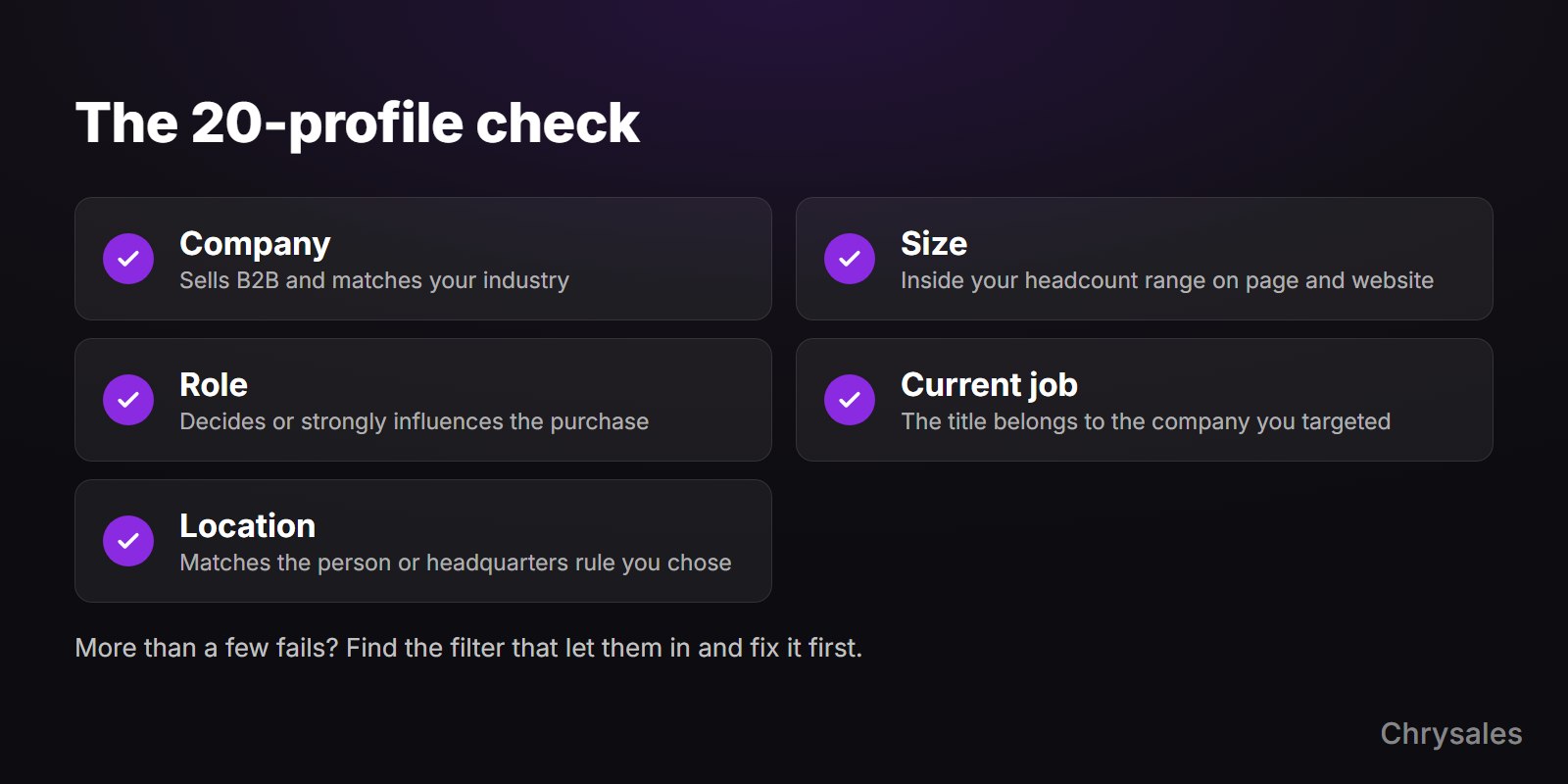
LinkedIn profiles go stale, and filters only work with what people and companies enter. The check has eight steps.
- Note the result count. According to LinkedIn's help center, Sales Navigator lets you view up to 2,500 lead results across 100 pages, or 1,000 account results across 40 pages, per search. If your search is bigger, split it by country or headcount range so you can see every result.
- Pick 20 profiles from different pages. Take some from the first page, some from the middle and some from the last page you can reach, because the first page alone can hide problems.
- Check each profile against the pass/fail table after these steps. Mark it pass or fail and write down the reason for each fail.
- Trace each fail to a filter. Wrong company size points to headcount, wrong role to the title or Boolean string, wrong country to Geography versus Headquarters location.
- Check for a loosened filter. When a search would return nothing, Sales Navigator may adjust a filter and show "the closest matching leads." If a narrow search returns an odd count, check which filter changed.
- Save the search. LinkedIn's saved search help page says you can save up to 50 lead searches and 50 account searches, and LinkedIn sends weekly emails and homepage alerts when new people match.
- Save the people to a lead list. Each list holds up to 1,000 leads, with 10,000 saved leads in total, according to LinkedIn's lead list help page.
- Rank the list. Filters show who can buy, and a lead score sets who goes first. Our guide on how to score your leads against your ICP covers that step.
| What to check | Pass if | Fail if |
|---|---|---|
| Company | Sells B2B and matches your industry | Wrong industry, a holding company or a one-person side business |
| Size | Inside your headcount range on the company page and website | Clearly smaller or larger than the filter suggested |
| Role | The person decides or strongly influences the purchase | Junior, assistant or an unrelated department |
| Current job | The matching title belongs to the company you targeted | The title comes from a second, unrelated current job |
| Location | Matches the person or headquarters rule you chose | Wrong country for your offer or language |
| Fit signals | Nothing in the company news rules them out | Recent layoffs, or the company is too small to afford you |
When the list passes, move on to your LinkedIn outreach strategy and the first touch. Our tips on how to write a connection request message pick up right where the list ends.
Which Sales Navigator plan do you need for these filters?
Core is enough for most Sales Navigator prospecting filters. LinkedIn's account types page lists advanced search filters in all three plans: Core, Advanced and Advanced Plus. Advanced adds buyer intent signals and TeamLink, and Advanced Plus adds the Past customer filter. Pay for a higher plan when you need those extra features, since the advanced search filters are the same.
| Plan | Price as of October 2026 | Search filters for prospecting |
|---|---|---|
| Core | From US$119.99 per month or US$1,079.88 per year, per license | Advanced search filters |
| Advanced | From US$159.99 per month or US$1,799.88 per year, per license | Advanced search filters, plus buyer intent signals and TeamLink |
| Advanced Plus | Price on request | Everything in Advanced, plus the Past customer filter |
LinkedIn lists these prices as estimates that may exclude VAT, and prices can differ by country. Check the compare plans page for your region before you buy.
Sales Navigator stops at finding people. For email addresses, phone numbers or company data from other sources, look at other list builder tools that work alongside it.
Common mistakes with Sales Navigator filters
The common mistakes are filtering on title alone, searching too broad or too narrow, trusting company data without a check, and mixing buyer types in one list. Each has a quick fix. Adding scraping or automation tools on top of your searches is a different kind of mistake, because it puts the LinkedIn account itself at risk.
- Filtering on title alone: a founder title says nothing about whether the company can afford you. Set headcount, industry and headquarters location first, then the title.
- Searching too broad: above 2,500 lead results you can't view everything. Split the search by country or headcount range so each part is fully visible.
- Searching too narrow: stacking every filter at once gives a near-empty list, and Sales Navigator may quietly loosen a filter to show close matches. Start broader, then score and sort.
- Trusting headcount blindly: LinkedIn says the member count on a Company Page can take up to 30 days to update. Check borderline companies on their page and website.
- Mixing buyer types: founders and heads of sales need different messages. Keep one list per buyer type.
- Following outdated guides: the Posted Content filter has been removed from lead search, and some older guides describe filters you won't find. Use the filter list in your own account.
- Adding scraping or automation extensions: LinkedIn's page on prohibited software says people who use prohibited software and extensions risk having their accounts restricted or shut down. Keep your searches inside Sales Navigator.
FAQ
How many results should a good Sales Navigator search return?
LinkedIn doesn't publish an ideal number. It does cap what you can see at 2,500 lead results per search, so anything bigger should be split into smaller searches. A good size is one your team can actually work through with outreach before the list goes stale.
Can you use Boolean in the Sales Navigator job title filter?
LinkedIn's help pages document Boolean in the Sales Navigator search bar, not inside the Current job title filter. To be safe, put your Boolean string in the search bar and use the other filters as normal. If you try it elsewhere, compare the result counts and check sample profiles.
Can you filter Sales Navigator by company revenue?
Yes. Annual revenue is one of the account filters, with a minimum and maximum. For most B2B searches, headcount is the more practical main size filter. Treat revenue as a secondary check you confirm against what you know about the company.
What is the difference between Geography and Headquarters location?
Geography is where the person is located. Headquarters location is where their company is based. Use Geography when the person's location matters, for example for in-person work, and Headquarters location when the company's home country matters for the contract or language.
How often should you rerun a saved search?
You don't have to rerun it by hand. A saved search sends weekly email alerts and homepage alerts when new people match, so new decision-makers show up as people change roles. We recommend checking saved searches weekly and adding new matches only after the same profile check.
Sources
- LinkedIn Help - Sales Navigator lead and account filter definitions
- LinkedIn Help - Search in Sales Navigator
- LinkedIn Help - Search for leads and accounts in Sales Navigator
- LinkedIn Help - Use Boolean search on LinkedIn
- LinkedIn Help - Boolean query limitations
- LinkedIn Help - Search results limit in Sales Navigator
- LinkedIn Help - Save lead and account searches
- LinkedIn Help - View and save leads
- LinkedIn Help - Personas in Sales Navigator FAQ
- LinkedIn Help - Members associated with a LinkedIn Page
- LinkedIn Help - Sales Navigator account types
- LinkedIn Help - Prohibited software and extensions
- LinkedIn - Compare Sales Navigator pricing and plans
- Microsoft Learn - LinkedIn industry codes
- LinkedIn Club Navigator - Beyond the basics: Sales Navigator advanced tips from our latest roundtable (recap by Francesca Dini, featuring Mike O'Neil)
- LinkedIn Sales Blog - Chris Cozzolino: How I search within Sales Navigator
- LinkedIn Sales Blog - Searching in Sales Navigator? These filters can help you find the people who matter most
- LinkedIn Sales Blog - the 2022 InMail analysis behind the 62% job-changer figure
Want this built for your business? Chrysales sets up the list, outreach, pipeline and closing system with you and your team. Book a free strategy call
Sales Navigator filters work best for finding B2B buyers when you set them in a fixed order. Start with account filters that decide which companies can afford you (headcount, industry, headquarters location), then add person filters for the one who signs (job title, function, years in position). Use Boolean keywords to clean up titles, and signals like Changed jobs to decide who goes first. Then check 20 profiles by hand before you send anything.
If your Sales Navigator lists keep filling up with juniors, tiny companies and people in the wrong country, this guide is for you. By the end you'll have a saved search that matches your ideal customer, three Boolean strings to copy and a 20-profile check.
What are lead filters and account filters in Sales Navigator?
Sales Navigator has two searches. Lead search finds people and filters them by role, company, location and activity. Account search finds companies and filters them by size, industry, location and growth. Use account filters to decide which companies are worth your time, and lead filters to find the person inside those companies who can say yes to what you sell.
LinkedIn's help page on lead and account filter definitions groups the filters like this:
| Search | Filter group | Example filters |
|---|---|---|
| Lead | Company | Current company, Company headcount, Company headquarters location |
| Lead | Role | Function, Current job title, Seniority level, Years in current position |
| Lead | Personal | Geography, Industry, Profile language, Years of experience |
| Lead | Buyer intent | Account has buyer intent, Following your company, Viewed your profile recently |
| Lead | Best path in | Connection, TeamLink connections of, Past colleague |
| Lead | Recent updates | Changed jobs, Posted on LinkedIn |
| Lead | Workflow | Account lists, Lead lists, Persona |
| Account | Company attributes | Company headcount, Company headcount growth, Headquarters location, Industry, Department headcount, Annual revenue |
| Account | Spotlights | Job opportunities, Recent activities |
One difference is easy to miss. Lead Geography is where the person is located, while Headquarters location is where the company is based, and LinkedIn lists them as separate filters.
Take a fictional example. Jana, Head of Marketing, lives in Vienna and works for a company headquartered in Munich. A search on Geography = Germany misses her, and a search on Headquarters location = Germany finds her. So decide which one matters for your offer: the person's location for on-site workshops, the headquarters for a retainer the company signs.
You can also connect the two searches. Build a list of fitting companies in account search, save them to an account list, then run a lead search with the Account lists filter so you only see people at those companies. That keeps the company decision and the person decision apart, which makes mistakes easier to trace.
Email verification, extra contact data and the final call on fit need more than Sales Navigator. Our lead list building guide covers those steps with more than one tool.
Which Sales Navigator filters should you set first?
Set the account filters first: company headcount, industry and headquarters location. These three decide whether a company can buy and afford what you sell, so they belong at the start. Add company headcount growth or department headcount only when growth or an existing team is part of your ideal customer profile. Leave job titles for later, once the companies are right.
Before you touch a filter, write down who your buyer is. Look at your best past clients and note what they had in common: size, industry, country, the role of the person who signed. If you can't describe that in two sentences, define your ideal customer profile first. Then pick one segment, get it right, and only then expand.
In this tutorial of about 6 minutes, Chrysales founder Sabir Naghiyev covers how to define a strict ideal client profile, the criteria to filter prospects by and how to add location targeting. The video is about finding qualified leads with AI, so watch it for the ideal-client part, then come back and set the filters here.
Take an example ideal customer: a B2B company with roughly 11 to 200 employees in Germany, Austria or Switzerland. The buyer is a founder, owner or managing director at the smaller end, and a head of sales or marketing at the larger end.
Set the account filters in this order:
- Company headcount: select the size ranges your past clients fall into. Check the range options in your own account rather than copying them from an old guide.
- Industry: pick specific industries, not only the broad parent. LinkedIn uses more than 400 industries aligned with NAICS, the North American industry classification, and in account search a parent industry also includes its child industries.
- Headquarters location: add the countries or regions where your buyers are based, for example Germany, Austria and Switzerland.
- Company headcount growth (optional): employee growth over the last 12 months. Useful when your offer suits growing companies, such as recruitment work.
- Department headcount (optional): employees in one department. Useful when your offer needs an existing team, such as sales training.
- Check the result count. If the number is huge, narrow the industry first. If it is tiny, widen the headcount or the region before you remove anything else.
Headcount numbers need a second look on borderline companies. LinkedIn's help page on Company Page members says the member count on a Company Page can take up to 30 days to update. When a company sits on the edge of your range, open its company page and website before you count it in.
Experts split on the order. Mike O'Neil, a LinkedIn coach quoted in LinkedIn's Club Navigator roundtable recap from 2026, is on the account-first side: start broad with industry and location and save job titles for last. Chris Cozzolino, writing on the LinkedIn Sales Blog in 2022, sets the title at the start, alongside geography and company. He also picked the Title filter as the one filter he would keep if he could only have one.
Our view: go account-first. A perfect founder title at a company that is far too small or far too large is still a no. Both experts rate the title filter highly. They differ on when to set it.
How do you find the decision-maker inside those companies?
Inside companies that fit, use Current job title for the exact role, Function to stay in the right department, and Years in current position to set how long someone has held the role. Treat Seniority level with care, because practitioners disagree about how reliable it is. Then watch out for people with several current jobs. They are a common reason the wrong people end up on a list.
Build one list per buyer type. A founder of a 10-person company and a head of sales at a 200-person company have different problems, and one message won't fit both.
Current job title is the filter for the exact role that signs. Type the titles your past buyers held, then add Boolean keywords in the search bar to catch variations. Function is LinkedIn's category for the department, such as Sales or Marketing. Run the search once with Function and once with titles only, and drop Function if it misses clearly right people.
LinkedIn describes Seniority level as a way to find leads matching your ideal customer profile. Use it cautiously: mainly to exclude junior levels, and skip it when you already have a precise title.
Years in current position helps when a new leader is likely to buy your offer early, so combine a short tenure with Changed jobs. For settled owners, leave it open. Geography is where the person is located, for offers where that matters more than the company's headquarters. Profile language is worth a test when your outreach is in German and you want German-speaking profiles in Switzerland or Austria.
The Seniority level filter is where the disagreement is loudest. Chris Cozzolino wrote on the LinkedIn Sales Blog: "The more I created searches, the more I realized how unreliable it is." Test it yourself. Run your search with and without Seniority level, and compare the profiles that drop out.
Once your geography, current job title, seniority and function settings work, you can save them as a Persona and reuse it with the Persona filter in later lead searches. Personas are defined only by those four. According to LinkedIn's Personas FAQ, you can have a maximum of five Personas at a time, so keep them for your main buyer types.
A frequent source of false positives is people with more than one current job. A person can match the title "Owner" from a small side business and the headcount from their day job, and franchise organizations show the same problem; broad titles make it more likely. LinkedIn's Club Navigator recap of Mike O'Neil's roundtable puts it simply: "Searches would be simple if everyone had just one job, but often they don't."
The fix is manual. When you check profiles, confirm that the matching title belongs to the company you targeted, not to a second role somewhere else.
How does Boolean search work in Sales Navigator?
Boolean search combines keywords with AND, OR and NOT, typed in uppercase in the Sales Navigator search bar above the results. Put phrases in quotation marks, group alternatives in parentheses, and stay within 15 operators per search. Wildcards such as an asterisk aren't supported. Keyword results can include related variations, so check a sample of profiles after every change.
The rules from LinkedIn's help pages, in one place:
- AND means both terms must match, OR means either term can match, and NOT removes a term.
- Type the operators in uppercase letters.
- Quotation marks keep a phrase together, such as "head of sales".
- Parentheses group terms, so you can combine a list of titles with a list of exclusions.
- Wildcards don't work, so write out each variation you want.
- Sales Navigator allows a maximum of 15 Boolean operators in a single search query, according to LinkedIn's help page on Boolean limits.
LinkedIn's help pages only mention Boolean for the search bar, not for the Current job title filter. So paste the three strings in this section into the search bar and set headcount, industry and location as usual.
Each NOT term can remove more people than you expect. Add exclusions one at a time and watch how the result count changes after each one.
Template 1: founders, owners and managing directors
(founder OR "co-founder" OR owner OR "managing director" OR CEO) NOT (assistant OR intern OR student)This uses 7 of the 15 operators. Pair it with your headcount range and headquarters location so the search stays inside companies that can buy.
Template 2: heads of sales and marketing
("head of sales" OR "head of marketing" OR "sales director" OR "marketing director" OR "VP sales" OR CMO) NOT (assistant OR intern OR coordinator)This uses 8 operators. If your buyers sit in both functions, run two searches, one for sales and one for marketing, so each list gets its own message.
Template 3: German titles for DACH
(Geschäftsführer OR Geschäftsführerin OR Inhaber OR Inhaberin OR Gründer OR Gründerin OR "Managing Director") NOT (Praktikant OR Werkstudent OR Assistenz)In English: Geschäftsführer/Geschäftsführerin = managing director, Inhaber/Inhaberin = owner, Gründer/Gründerin = founder, Praktikant = intern, Werkstudent = working student, Assistenz = assistant.
This uses 9 operators. People in Germany, Austria and Switzerland may write their title in German or in English, so "Managing Director" stays in. Some profiles may spell Geschäftsführer without the umlaut (Geschaeftsfuehrer). If your profile check shows people missed that way, add that spelling as another OR term and recount your operators.
Contacting people in Germany and Austria falls under the GDPR. Switzerland has its own data protection law (the revised FADP), and all three have national unfair-competition rules, so check with a lawyer how they apply to your outreach.
Paste the strings from a plain-text editor so the quotation marks stay plain, then open a few profiles from the results to check that the matches make sense.
Which filters show who to contact first?
Once a Sales Navigator list fits your ideal customer profile, signal filters decide the order. Changed jobs shows people who started a new role in the last 90 days, and Posted on LinkedIn shows people who posted in the last 30 days. On Advanced plans, buyer intent signals and TeamLink add more. Use signals to sort and split a list that already fits, rather than as the filter that defines it.
Signals matter because a person who just joined a company, or a company hiring for sales roles, may be closer to a decision than before.
Changed jobs covers job changes within the last 90 days. LinkedIn's Sales Blog says people who started a new job at a new company within the past 90 days are 62% more likely to respond to InMails. LinkedIn bases that figure on its own analysis of Sales Navigator InMails sent in 2022 and gives no sample size or method, so treat it as a vendor claim.
Posted on LinkedIn covers people who created a post in the last 30 days. It shrinks lists fast: in one example Mike O'Neil shared, a search of 2,500 people dropped to 291. He also warned that the people who post are often sellers rather than buyers.
On the account side, the Job opportunities and Recent activities spotlights show what is changing at a company, for example open sales roles. Buyer Intent signals and TeamLink are only in Advanced and Advanced Plus, according to LinkedIn's account types page. LinkedIn's filter definitions also mark "Viewed your Company Page recently" as Advanced and Advanced Plus only.
Rather than turning on every signal at once, split the list. Run the fitting search once with Posted on LinkedIn and once without. The active people go into a separate list you warm up with comments and profile visits first, and the rest get standard outreach.
Sales Navigator filter cheat sheet
The table below covers the Sales Navigator filters that matter for B2B prospecting, what each one is for and when to skip it. Work from the top down: company fit first, then the person, then signals. LinkedIn's account types page lists advanced search filters in all three plans, and the first 12 rows use them. The last three need a higher plan, as the table notes. Plan details were checked in October 2026.
| Filter | Use it for | Skip it or be careful when |
|---|---|---|
| Company headcount | Companies big enough to pay you | Company Page member counts can lag up to 30 days, so check borderline companies by hand |
| Industry | Your target market | A parent industry includes its child industries in account search |
| Headquarters location | Where the company is based | You care where the buyer sits, so use Geography |
| Company headcount growth | Companies that grew over the last 12 months | Growth isn't part of your ideal customer profile |
| Department headcount | Companies with an existing sales or marketing team | You sell to firms that don't have that team yet |
| Current job title | The exact role that signs | Broad titles like Owner or President without a profile check |
| Function | Staying inside one department | It drops right people that a title-only search finds |
| Seniority level | Excluding junior levels | You already have a precise title; some practitioners call it unreliable |
| Years in current position | New leaders or settled owners | Tenure doesn't change whether someone buys from you |
| Geography | The person's own location | You care about company headquarters instead |
| Changed jobs | People in a new role within the last 90 days | Your list is already small, because the filter narrows it further |
| Posted on LinkedIn | People who posted in the last 30 days | Small searches, because it shrinks lists fast |
| Account has buyer intent (Buyer Intent signals) | Companies showing interest in your company | You are on Core, since it needs Advanced or Advanced Plus |
| TeamLink | Paths in through your colleagues' networks | You are on Core, since it needs Advanced or Advanced Plus |
| Past customer | People who worked at one of your customers | You are not on Advanced Plus, the only plan that has it |
One filter is gone. LinkedIn's help center says the Posted Content filter in lead search is no longer available, so older guides that rely on it are out of date.
How do you check a list before you start outreach?
Open 20 profiles from different pages of your results and check each one against your ideal customer profile: right company, right size, right role, still in that job, right location. If almost all pass, save the search and move the people into a lead list. If more than a few fail, find the filter that let them in and fix it before you send a single message.
LinkedIn profiles go stale, and filters only work with what people and companies enter. The check has eight steps.
- Note the result count. According to LinkedIn's help center, Sales Navigator lets you view up to 2,500 lead results across 100 pages, or 1,000 account results across 40 pages, per search. If your search is bigger, split it by country or headcount range so you can see every result.
- Pick 20 profiles from different pages. Take some from the first page, some from the middle and some from the last page you can reach, because the first page alone can hide problems.
- Check each profile against the pass/fail table after these steps. Mark it pass or fail and write down the reason for each fail.
- Trace each fail to a filter. Wrong company size points to headcount, wrong role to the title or Boolean string, wrong country to Geography versus Headquarters location.
- Check for a loosened filter. When a search would return nothing, Sales Navigator may adjust a filter and show "the closest matching leads." If a narrow search returns an odd count, check which filter changed.
- Save the search. LinkedIn's saved search help page says you can save up to 50 lead searches and 50 account searches, and LinkedIn sends weekly emails and homepage alerts when new people match.
- Save the people to a lead list. Each list holds up to 1,000 leads, with 10,000 saved leads in total, according to LinkedIn's lead list help page.
- Rank the list. Filters show who can buy, and a lead score sets who goes first. Our guide on how to score your leads against your ICP covers that step.
| What to check | Pass if | Fail if |
|---|---|---|
| Company | Sells B2B and matches your industry | Wrong industry, a holding company or a one-person side business |
| Size | Inside your headcount range on the company page and website | Clearly smaller or larger than the filter suggested |
| Role | The person decides or strongly influences the purchase | Junior, assistant or an unrelated department |
| Current job | The matching title belongs to the company you targeted | The title comes from a second, unrelated current job |
| Location | Matches the person or headquarters rule you chose | Wrong country for your offer or language |
| Fit signals | Nothing in the company news rules them out | Recent layoffs, or the company is too small to afford you |
When the list passes, move on to your LinkedIn outreach strategy and the first touch. Our tips on how to write a connection request message pick up right where the list ends.
Which Sales Navigator plan do you need for these filters?
Core is enough for most Sales Navigator prospecting filters. LinkedIn's account types page lists advanced search filters in all three plans: Core, Advanced and Advanced Plus. Advanced adds buyer intent signals and TeamLink, and Advanced Plus adds the Past customer filter. Pay for a higher plan when you need those extra features, since the advanced search filters are the same.
| Plan | Price as of October 2026 | Search filters for prospecting |
|---|---|---|
| Core | From US$119.99 per month or US$1,079.88 per year, per license | Advanced search filters |
| Advanced | From US$159.99 per month or US$1,799.88 per year, per license | Advanced search filters, plus buyer intent signals and TeamLink |
| Advanced Plus | Price on request | Everything in Advanced, plus the Past customer filter |
LinkedIn lists these prices as estimates that may exclude VAT, and prices can differ by country. Check the compare plans page for your region before you buy.
Sales Navigator stops at finding people. For email addresses, phone numbers or company data from other sources, look at other list builder tools that work alongside it.
Common mistakes with Sales Navigator filters
The common mistakes are filtering on title alone, searching too broad or too narrow, trusting company data without a check, and mixing buyer types in one list. Each has a quick fix. Adding scraping or automation tools on top of your searches is a different kind of mistake, because it puts the LinkedIn account itself at risk.
- Filtering on title alone: a founder title says nothing about whether the company can afford you. Set headcount, industry and headquarters location first, then the title.
- Searching too broad: above 2,500 lead results you can't view everything. Split the search by country or headcount range so each part is fully visible.
- Searching too narrow: stacking every filter at once gives a near-empty list, and Sales Navigator may quietly loosen a filter to show close matches. Start broader, then score and sort.
- Trusting headcount blindly: LinkedIn says the member count on a Company Page can take up to 30 days to update. Check borderline companies on their page and website.
- Mixing buyer types: founders and heads of sales need different messages. Keep one list per buyer type.
- Following outdated guides: the Posted Content filter has been removed from lead search, and some older guides describe filters you won't find. Use the filter list in your own account.
- Adding scraping or automation extensions: LinkedIn's page on prohibited software says people who use prohibited software and extensions risk having their accounts restricted or shut down. Keep your searches inside Sales Navigator.
FAQ
How many results should a good Sales Navigator search return?
LinkedIn doesn't publish an ideal number. It does cap what you can see at 2,500 lead results per search, so anything bigger should be split into smaller searches. A good size is one your team can actually work through with outreach before the list goes stale.
Can you use Boolean in the Sales Navigator job title filter?
LinkedIn's help pages document Boolean in the Sales Navigator search bar, not inside the Current job title filter. To be safe, put your Boolean string in the search bar and use the other filters as normal. If you try it elsewhere, compare the result counts and check sample profiles.
Can you filter Sales Navigator by company revenue?
Yes. Annual revenue is one of the account filters, with a minimum and maximum. For most B2B searches, headcount is the more practical main size filter. Treat revenue as a secondary check you confirm against what you know about the company.
What is the difference between Geography and Headquarters location?
Geography is where the person is located. Headquarters location is where their company is based. Use Geography when the person's location matters, for example for in-person work, and Headquarters location when the company's home country matters for the contract or language.
How often should you rerun a saved search?
You don't have to rerun it by hand. A saved search sends weekly email alerts and homepage alerts when new people match, so new decision-makers show up as people change roles. We recommend checking saved searches weekly and adding new matches only after the same profile check.
Sources
- LinkedIn Help - Sales Navigator lead and account filter definitions
- LinkedIn Help - Search in Sales Navigator
- LinkedIn Help - Search for leads and accounts in Sales Navigator
- LinkedIn Help - Use Boolean search on LinkedIn
- LinkedIn Help - Boolean query limitations
- LinkedIn Help - Search results limit in Sales Navigator
- LinkedIn Help - Save lead and account searches
- LinkedIn Help - View and save leads
- LinkedIn Help - Personas in Sales Navigator FAQ
- LinkedIn Help - Members associated with a LinkedIn Page
- LinkedIn Help - Sales Navigator account types
- LinkedIn Help - Prohibited software and extensions
- LinkedIn - Compare Sales Navigator pricing and plans
- Microsoft Learn - LinkedIn industry codes
- LinkedIn Club Navigator - Beyond the basics: Sales Navigator advanced tips from our latest roundtable (recap by Francesca Dini, featuring Mike O'Neil)
- LinkedIn Sales Blog - Chris Cozzolino: How I search within Sales Navigator
- LinkedIn Sales Blog - Searching in Sales Navigator? These filters can help you find the people who matter most
- LinkedIn Sales Blog - the 2022 InMail analysis behind the 62% job-changer figure
Want this built for your business? Chrysales sets up the list, outreach, pipeline and closing system with you and your team. Book a free strategy call
Scaling Is Not Hard If You Have The Right Systems
If you’re serious about leveling up your scaling game, you need the right system, the right training, and the right team behind you. We're here to give you the exact tools and strategies top entrepreneurs use to dominate.

Discover the latest tips
View All.avif)
Chrysales was formed from the words "chrysalis" the stage where a caterpillar transforms into a butterfly and "sales".
It stands for one thing: sales transformation.Because scaling doesn’t happen by doing more of the same. Scaling only happens when you go through real transformation in your systems, your offer, team and the way you sell.
.avif)


