
Sales Navigator export: what LinkedIn allows and what it bans
There is no Sales Navigator export to CSV or Excel. LinkedIn's help center says it "currently doesn't offer the option to export account and lead information from Sales Navigator into a CSV or XLS file" (checked November 2026). The alternatives LinkedIn offers all need the Advanced Plus plan and work through a connected CRM. Browser extensions that add an export button break LinkedIn's User Agreement, and LinkedIn says people who use them risk having their accounts restricted or shut down.
Sales Navigator is where you find and qualify people. It isn't where you keep your data. Move the right people into your CRM the way LinkedIn allows, and build their contact data from sources whose terms and origin you have checked.
Can you export leads from Sales Navigator?
Not as a file. LinkedIn's help page on exporting account and lead information says there is no option to export leads or accounts from Sales Navigator into a CSV or XLS file. The same page says "alternative solutions are available" on the Advanced Plus plan, and those alternatives work through your CRM instead of giving you a download.
When a vendor blog promises a "Sales Navigator export", it almost always means a browser extension or scraper that reads the pages you open and writes them into a spreadsheet. That is a third-party tool, and LinkedIn's User Agreement and help center prohibit it (see the section on the User Agreement).
LinkedIn's plan table also lists "Upload book of business (CSV)" for Advanced and Advanced Plus. It moves a file of your accounts into Sales Navigator, and nothing comes out.
What Sales Navigator does give you is storage inside the tool. These limits come from LinkedIn's help pages, as of November 2026:
- Lead lists. You can save up to 1,000 leads in each list and 10,000 leads in total, according to LinkedIn's page on viewing and saving leads.
- Bulk saving. Ticking the box above the search results and clicking Save to list saves 25 leads at a time.
- Search results. LinkedIn's search results limit page says you can view "up to 2,500 lead results across 100 pages or 1,000 account results across 40 pages", so a broad market needs several narrower searches.
What can you take out of Sales Navigator, and on which plan?
Very little leaves Sales Navigator, and most of it needs Advanced Plus. On that plan you can create CRM records one lead at a time with Add to CRM, create leads in bulk from a Relationship Map, and log activity back to the CRM. On any plan you can download your own 1st-degree connections from LinkedIn. Export extensions work on any plan, and LinkedIn bans them.
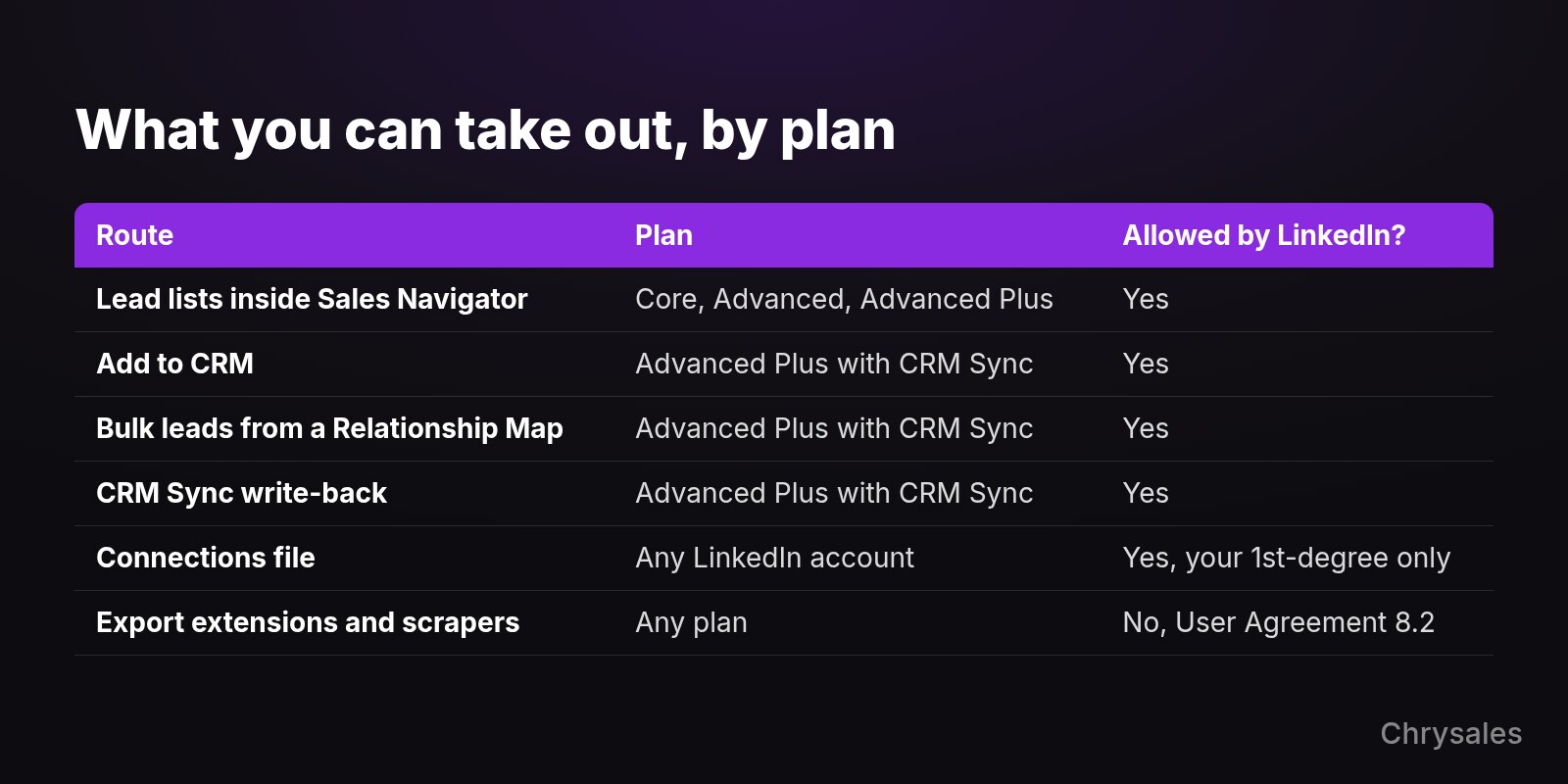
LinkedIn's export page names three alternatives on Advanced Plus: CRM Sync, Embedded Profiles and lead creation in the CRM. The plan comparison page describes Core as solo prospecting, Advanced as "Team collaboration without CRM sync" and Advanced Plus as "Full CRM sync". Here is every route side by side, checked against LinkedIn's help pages in November 2026:
| Route | What you get | Plan | Allowed by LinkedIn? |
|---|---|---|---|
| Lead lists inside Sales Navigator | Saved leads you can sort and work in the tool; nothing leaves it | Core, Advanced, Advanced Plus | Yes |
| Upload book of business (CSV) | Your accounts go into Sales Navigator; it's an upload | Advanced, Advanced Plus | Yes |
| Add to CRM | One new CRM lead or contact per click, with fields you fill in | Advanced Plus with CRM Sync | Yes |
| Bulk lead creation from a Relationship Map | Leads created in bulk, a setting in CRM Sync | Advanced Plus with CRM Sync | Yes |
| CRM Sync write-back | InMails, messages and notes logged to the CRM, out-of-date records flagged | Advanced Plus with CRM Sync | Yes |
| Download your data (Connections file) | Your own 1st-degree connections; email only if they allow it | Any LinkedIn account | Yes |
| Export extensions and scrapers | A CSV of profiles the tool read | Any plan | No, User Agreement section 8.2 |
The Connections file is the one route that gives you a real file, and it's narrower than people hope. You request it under Me icon > Settings & Privacy > Data Privacy > Download your data. LinkedIn's Download your data page says the larger archive arrives by email within 24 hours and stays available for 72 hours.
The file lists first and last name, public profile URL, email address, company, position and connection date for your 1st-degree connections. LinkedIn adds that an email address "will be included only when authorized by the connection in their privacy settings". It also says it "will only provide your own personal data and not that of other members", and the page lists no file of Sales Navigator saved leads.
How does the Advanced Plus CRM Sync work?
CRM Sync links your CRM and Sales Navigator on the Advanced Plus plan. LinkedIn's CRM integration page says it imports the accounts and contacts from your CRM into Sales Navigator and can write select data back. You can create CRM records from Sales Navigator, but there is no step that pushes a saved lead list into the CRM.
The details, from LinkedIn's help pages as of November 2026:
- Which CRMs. CRM Sync works with HubSpot, Microsoft Dynamics 365, Oracle Sales and Salesforce.
- Leads or contacts. Lead creation works for Microsoft Dynamics 365, Oracle and Salesforce; contact creation works for HubSpot, Microsoft Dynamics 365, Oracle and Salesforce, according to the page on features by CRM Sync permission.
- What goes back. You can log InMails, messages, notes and Smart Links to the CRM, create and update CRM leads and contacts, and flag out-of-date CRM data.
- How often. The CRM Sync settings page says "Data is synced daily, once per day." LinkedIn's export page calls the updates real time, so expect some delay either way.
- Salesforce. You can sync one Salesforce instance per Sales Navigator contract.
- Bulk. A setting allows bulk lead creation from a Relationship Map.
Creating one record works like this, per LinkedIn's page on lead creation in your CRM:
- Open the lead's page in Sales Navigator.
- Click Add to CRM, then Add new lead.
- Fill in first and last name, which are required.
- Add country, job title, email, phone and company if you have them; these fields are optional.
The email field is something you fill in, and none of LinkedIn's help pages say Sales Navigator supplies email addresses.
If you use HubSpot, watch for one more trap: HubSpot has two different integrations. HubSpot's basic Sales Navigator integration needs an Advanced Plus account and Sales Hub Professional or Enterprise seats. HubSpot also says "It is not possible to import contacts from LinkedIn using the integration". The separate CRM Sync for HubSpot lets you "Create and update HubSpot contacts from Sales Navigator", but "Only new and updated data will sync" after you turn it on.
In a July 2024 HubSpot Community thread, a user asked whether connecting Sales Navigator would import contacts into HubSpot. One reply said "it is not possible to import contacts from LinkedIn using the integration", and another said "The integration does not create new contacts in HubSpot".
What does LinkedIn's User Agreement say about export tools?
Section 8.2 of LinkedIn's User Agreement rules out software, scripts and "browser plugins and add-ons" used "to scrape or copy the Services, including profiles and other data from the Services". A browser extension that copies your lead list into a CSV fits that description. LinkedIn's help center adds that people who use such tools risk restriction or shutdown.
Three more clauses in the same section, in the version effective November 3, 2025, cover the rest of what export tools do. You agree not to:
- "Use bots or other unauthorized automated methods to access the Services, add or download contacts, send or redirect messages".
- "Copy, use, display or distribute any information (including content) obtained from the Services, whether directly or through third parties (such as search tools or data aggregators or brokers), without the consent of the content owner".
- "Overlay or otherwise modify the Services or their appearance", for example "by inserting elements into the Services". In our reading, an extension that adds its own Export button to the Sales Navigator page is such an inserted element.
LinkedIn's page on prohibited software and extensions says LinkedIn doesn't permit "browser plug-ins, or browser extensions that scrape, modify the appearance of, or automate activity on LinkedIn's website". People who use them "risk having their accounts restricted or shut down", and the tools themselves may stop working without notice.
LinkedIn's page on automated activity says software that automates tasks "could potentially export or scrape data from LinkedIn", which violates the User Agreement and "may be a violation of privacy legislation in specific jurisdictions". If your account is restricted for it, LinkedIn tells you to disable the software or extension. The account is then re-enabled at the time shown on the suspension notice, though LinkedIn's prohibited software page says accounts can also be shut down.
LinkedIn doesn't publish a ban rate or a number of exports that counts as safe, so when a tool calls itself "safe", that's the vendor's claim. Two public cases involve scraping and LinkedIn:
- hiQ Labs v. LinkedIn. According to law firm ZwillGen, the district court held that hiQ violated LinkedIn's user agreement through automated scraping of profiles and through hiring workers to create fake profiles. The case ended in December 2022 with a $500,000 judgment against hiQ and an injunction, as Proskauer and ZwillGen reported. The commentators note the agreed terms don't set precedent, and none of this is legal advice.
- Apollo.io and a second lead-gen provider. According to MarTech, both companies' pages disappeared from LinkedIn on March 6, 2025, and MarTech notes that both have Chrome extensions salespeople use to take data from LinkedIn. LinkedIn gave no public reason, so any link to those extensions is a guess, and the report doesn't say what the pages look like today.
Is it legal to copy LinkedIn data into your CRM?
Whether LinkedIn allows something and whether data protection law allows it are two separate questions. If you contact people in the EU and their data came from a third party, the European Commission says you must tell them by your first message at the latest, and they can object. This is a pointer to the rule, not legal advice.
The European Commission's page on using data received from a third party for marketing says such lists are processed on grounds of legitimate interests. You must inform people that you collected their data "at the latest at the time of the first communication with them".
A public case shows what regulators look at. In December 2024, France's data protection authority CNIL fined KASPR EUR 240,000. As the EDPB summary puts it, KASPR marketed a Chrome extension "that enables paying customers to obtain the professional contact details of people whose profiles they visit on the LinkedIn social network". That included details members had limited, and KASPR was ordered to stop collecting such data and delete it.
If you sell into DACH, Germany and Austria fall under the GDPR, while Switzerland has its own data protection law, the FADP.
Email itself has separate rules: Germany's unfair competition law (UWG section 7) treats advertising by email without prior express consent as an unreasonable nuisance, and it doesn't exempt businesses. The narrow exception in the same section covers existing customers, not cold outreach. Other markets have their own rules. Before you load people into a CRM and email them, check your setup with a lawyer who knows the countries you sell into.
How do you turn a saved search into a list you can use?
Use Sales Navigator for finding and qualifying, and build the contact record outside it. Save the right people to a lead list and check them by hand. Then move the qualified ones into your CRM, add contact data from sources whose terms and origin you have checked, and say where you got it in your first message. The six steps below use no extension.
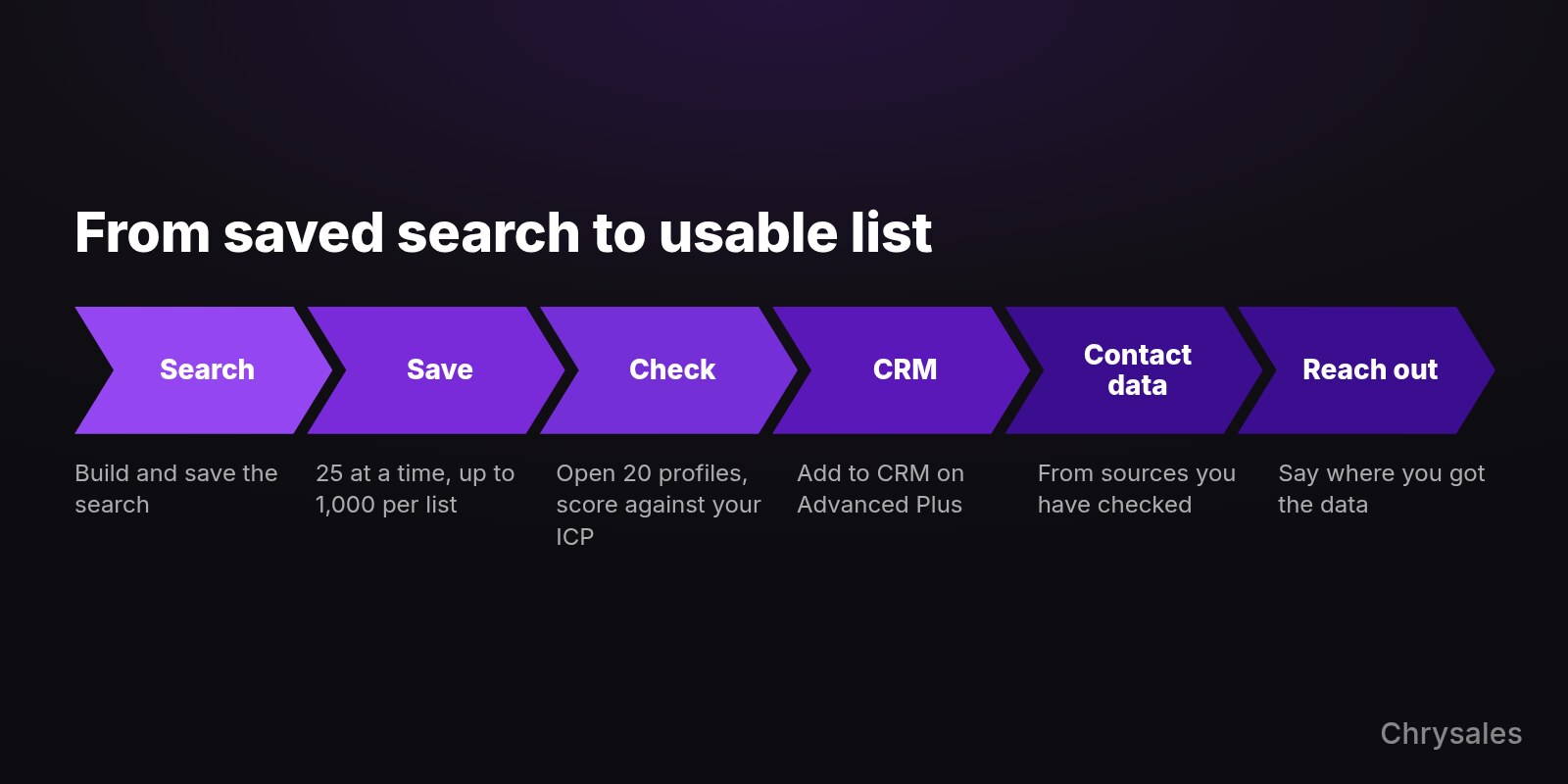
- Build and save the search. Set account filters first, then person filters, as our Sales Navigator filters guide explains. LinkedIn shows up to 2,500 lead results per search, so split a large market into several saved searches. A 30-person B2B company selling across DACH might keep one saved search per country, for example.
- Save the right people to a lead list. Tick the box above the results and click Save to list, which saves 25 leads at a time. Keep each list under the 1,000-lead limit, and remember the 10,000-lead total.
- Check the list by hand. Open 20 profiles before the list goes anywhere, as the filters guide recommends, and score each lead against your ICP so only real fits move on.
- Move qualified leads into your CRM. On Advanced Plus with CRM Sync, click Add to CRM on each lead page, which creates the record. Core and Advanced have no transfer route, so fill in the CRM record from the sources in step 5. In our reading, the User Agreement's clause on copying information from LinkedIn makes no exception for copying by hand, so check with a lawyer before you rely on that workaround.
- Add contact data from sources whose terms and origin you have checked. Our filters guide puts it plainly: "Sales Navigator stops at finding people". Options include the company's own website, a B2B data provider that can tell you where its data comes from, your own Connections file for 1st-degree contacts, or simply asking the person on LinkedIn. A source being available doesn't make it lawful to email from, so check the EU and UWG points with a lawyer. The lead list building guide covers keeping that data fresh.
- Reach out and say where you got the data. In the first message, say how you found the person and where their contact data came from, in line with the EU rule on informing people at first contact. Keep LinkedIn messages inside LinkedIn with a clear LinkedIn outreach strategy, and send email within sensible cold email limits per inbox.
To check the list worked, pick any CRM record. Can you name where each field came from, does the person still match your ICP, and did your first message say how you found them? If any answer is no, fix that record before the next batch.
For a wider view of the sales process around a list, Sabir's video walks through 12 AI use cases for sales, from finding leads all the way to closing.
Common mistakes with a Sales Navigator export
Most mistakes here come from expecting the wrong thing from your plan, your CRM or an extension. You buy a seat expecting a file, connect a CRM expecting an import, or trust a tool that calls itself safe. Each one below has a fix you can use before you spend money or put your account at risk.
- Buying Core or Advanced and expecting a CRM sync. LinkedIn's plan table says only Advanced Plus moves Sales Navigator information into the CRM. Check the plan before you sign.
- Trusting an extension that calls itself safe. LinkedIn publishes no safe volume, and its help center says users of prohibited tools risk restriction or shutdown. Keep your main account free of export extensions.
- Expecting HubSpot's basic integration to import contacts. HubSpot says it can't. HubSpot's separate CRM Sync, on Advanced Plus, lets you create and update contacts from Sales Navigator.
- Expecting CRM Sync to fill in the past. HubSpot says only new and updated data syncs after you turn it on, so plan the first weeks with that in mind.
- Treating a public profile as free to collect and email. The KASPR fine shows regulators look at how contact data was gathered. Note the source of every record and tell people at first contact.
- Repeating a tool vendor's export cap as if LinkedIn set it. The limits LinkedIn states are 25 leads per bulk save, 1,000 per list, 10,000 in total and up to 2,500 lead results (1,000 account results) per search.
FAQ
Can I export Sales Navigator leads to Excel?
No. LinkedIn says it doesn't offer an export of leads or accounts from Sales Navigator into a CSV or XLS file, as of November 2026. On Advanced Plus you can add leads to a connected CRM one at a time.
Will LinkedIn ban me for using an export extension?
LinkedIn doesn't publish a ban rate or a threshold. Its help center says people who use prohibited extensions "risk having their accounts restricted or shut down", and its User Agreement names browser plugins and add-ons that scrape or copy profiles. If you're restricted, LinkedIn asks you to disable the software first.
Does Sales Navigator give you email addresses?
LinkedIn's help pages don't say it does. In Add to CRM, email is an optional field you fill in yourself. The Connections file from Download your data includes an email only for 1st-degree connections who allow it in their privacy settings.
How many leads can a Sales Navigator list hold?
Up to 1,000 leads per list and 10,000 saved leads in total, per LinkedIn's help page as of November 2026. You can save 25 leads at a time from search results.
Sources
- LinkedIn Help - Export account and lead information from Sales Navigator
- LinkedIn Help - Sales Navigator account types and features
- LinkedIn Help - Integration between Sales Navigator and your CRM
- LinkedIn Help - Manage CRM Sync with Sales Navigator
- LinkedIn Help - Features based on CRM Sync permissions
- LinkedIn Help - Lead creation in CRM from Sales Navigator
- LinkedIn Help - View and save leads in Sales Navigator
- LinkedIn Help - Search results limit in Sales Navigator
- LinkedIn - User Agreement
- LinkedIn Help - Prohibited software and extensions
- LinkedIn Help - Automated activity on LinkedIn
- LinkedIn Help - Download your data
- HubSpot Knowledge Base - Connect HubSpot and LinkedIn Sales Navigator
- HubSpot Knowledge Base - Connect HubSpot and LinkedIn Sales Navigator through CRM Sync
- HubSpot Community - Does Sales Navigator import LinkedIn contacts in HubSpot?
- European Commission - Can data received from a third party be used for marketing?
- EDPB - French supervisory authority fined KASPR EUR 240,000
- CNIL - Sanction against KASPR (French)
- ZwillGen - hiQ v. LinkedIn wrapped up: web scraping lessons learned
- Proskauer - hiQ and LinkedIn reach proposed settlement in landmark scraping case
- MarTech - Are more lead gen providers disappearing from LinkedIn?
If you have a saved search but no steady way to turn it into conversations, a free strategy call with Chrysales is the place to talk through your steps from list to outreach. Talk through your list-to-outreach steps on a free call
There is no Sales Navigator export to CSV or Excel. LinkedIn's help center says it "currently doesn't offer the option to export account and lead information from Sales Navigator into a CSV or XLS file" (checked November 2026). The alternatives LinkedIn offers all need the Advanced Plus plan and work through a connected CRM. Browser extensions that add an export button break LinkedIn's User Agreement, and LinkedIn says people who use them risk having their accounts restricted or shut down.
Sales Navigator is where you find and qualify people. It isn't where you keep your data. Move the right people into your CRM the way LinkedIn allows, and build their contact data from sources whose terms and origin you have checked.
Can you export leads from Sales Navigator?
Not as a file. LinkedIn's help page on exporting account and lead information says there is no option to export leads or accounts from Sales Navigator into a CSV or XLS file. The same page says "alternative solutions are available" on the Advanced Plus plan, and those alternatives work through your CRM instead of giving you a download.
When a vendor blog promises a "Sales Navigator export", it almost always means a browser extension or scraper that reads the pages you open and writes them into a spreadsheet. That is a third-party tool, and LinkedIn's User Agreement and help center prohibit it (see the section on the User Agreement).
LinkedIn's plan table also lists "Upload book of business (CSV)" for Advanced and Advanced Plus. It moves a file of your accounts into Sales Navigator, and nothing comes out.
What Sales Navigator does give you is storage inside the tool. These limits come from LinkedIn's help pages, as of November 2026:
- Lead lists. You can save up to 1,000 leads in each list and 10,000 leads in total, according to LinkedIn's page on viewing and saving leads.
- Bulk saving. Ticking the box above the search results and clicking Save to list saves 25 leads at a time.
- Search results. LinkedIn's search results limit page says you can view "up to 2,500 lead results across 100 pages or 1,000 account results across 40 pages", so a broad market needs several narrower searches.
What can you take out of Sales Navigator, and on which plan?
Very little leaves Sales Navigator, and most of it needs Advanced Plus. On that plan you can create CRM records one lead at a time with Add to CRM, create leads in bulk from a Relationship Map, and log activity back to the CRM. On any plan you can download your own 1st-degree connections from LinkedIn. Export extensions work on any plan, and LinkedIn bans them.
LinkedIn's export page names three alternatives on Advanced Plus: CRM Sync, Embedded Profiles and lead creation in the CRM. The plan comparison page describes Core as solo prospecting, Advanced as "Team collaboration without CRM sync" and Advanced Plus as "Full CRM sync". Here is every route side by side, checked against LinkedIn's help pages in November 2026:
| Route | What you get | Plan | Allowed by LinkedIn? |
|---|---|---|---|
| Lead lists inside Sales Navigator | Saved leads you can sort and work in the tool; nothing leaves it | Core, Advanced, Advanced Plus | Yes |
| Upload book of business (CSV) | Your accounts go into Sales Navigator; it's an upload | Advanced, Advanced Plus | Yes |
| Add to CRM | One new CRM lead or contact per click, with fields you fill in | Advanced Plus with CRM Sync | Yes |
| Bulk lead creation from a Relationship Map | Leads created in bulk, a setting in CRM Sync | Advanced Plus with CRM Sync | Yes |
| CRM Sync write-back | InMails, messages and notes logged to the CRM, out-of-date records flagged | Advanced Plus with CRM Sync | Yes |
| Download your data (Connections file) | Your own 1st-degree connections; email only if they allow it | Any LinkedIn account | Yes |
| Export extensions and scrapers | A CSV of profiles the tool read | Any plan | No, User Agreement section 8.2 |
The Connections file is the one route that gives you a real file, and it's narrower than people hope. You request it under Me icon > Settings & Privacy > Data Privacy > Download your data. LinkedIn's Download your data page says the larger archive arrives by email within 24 hours and stays available for 72 hours.
The file lists first and last name, public profile URL, email address, company, position and connection date for your 1st-degree connections. LinkedIn adds that an email address "will be included only when authorized by the connection in their privacy settings". It also says it "will only provide your own personal data and not that of other members", and the page lists no file of Sales Navigator saved leads.
How does the Advanced Plus CRM Sync work?
CRM Sync links your CRM and Sales Navigator on the Advanced Plus plan. LinkedIn's CRM integration page says it imports the accounts and contacts from your CRM into Sales Navigator and can write select data back. You can create CRM records from Sales Navigator, but there is no step that pushes a saved lead list into the CRM.
The details, from LinkedIn's help pages as of November 2026:
- Which CRMs. CRM Sync works with HubSpot, Microsoft Dynamics 365, Oracle Sales and Salesforce.
- Leads or contacts. Lead creation works for Microsoft Dynamics 365, Oracle and Salesforce; contact creation works for HubSpot, Microsoft Dynamics 365, Oracle and Salesforce, according to the page on features by CRM Sync permission.
- What goes back. You can log InMails, messages, notes and Smart Links to the CRM, create and update CRM leads and contacts, and flag out-of-date CRM data.
- How often. The CRM Sync settings page says "Data is synced daily, once per day." LinkedIn's export page calls the updates real time, so expect some delay either way.
- Salesforce. You can sync one Salesforce instance per Sales Navigator contract.
- Bulk. A setting allows bulk lead creation from a Relationship Map.
Creating one record works like this, per LinkedIn's page on lead creation in your CRM:
- Open the lead's page in Sales Navigator.
- Click Add to CRM, then Add new lead.
- Fill in first and last name, which are required.
- Add country, job title, email, phone and company if you have them; these fields are optional.
The email field is something you fill in, and none of LinkedIn's help pages say Sales Navigator supplies email addresses.
If you use HubSpot, watch for one more trap: HubSpot has two different integrations. HubSpot's basic Sales Navigator integration needs an Advanced Plus account and Sales Hub Professional or Enterprise seats. HubSpot also says "It is not possible to import contacts from LinkedIn using the integration". The separate CRM Sync for HubSpot lets you "Create and update HubSpot contacts from Sales Navigator", but "Only new and updated data will sync" after you turn it on.
In a July 2024 HubSpot Community thread, a user asked whether connecting Sales Navigator would import contacts into HubSpot. One reply said "it is not possible to import contacts from LinkedIn using the integration", and another said "The integration does not create new contacts in HubSpot".
What does LinkedIn's User Agreement say about export tools?
Section 8.2 of LinkedIn's User Agreement rules out software, scripts and "browser plugins and add-ons" used "to scrape or copy the Services, including profiles and other data from the Services". A browser extension that copies your lead list into a CSV fits that description. LinkedIn's help center adds that people who use such tools risk restriction or shutdown.
Three more clauses in the same section, in the version effective November 3, 2025, cover the rest of what export tools do. You agree not to:
- "Use bots or other unauthorized automated methods to access the Services, add or download contacts, send or redirect messages".
- "Copy, use, display or distribute any information (including content) obtained from the Services, whether directly or through third parties (such as search tools or data aggregators or brokers), without the consent of the content owner".
- "Overlay or otherwise modify the Services or their appearance", for example "by inserting elements into the Services". In our reading, an extension that adds its own Export button to the Sales Navigator page is such an inserted element.
LinkedIn's page on prohibited software and extensions says LinkedIn doesn't permit "browser plug-ins, or browser extensions that scrape, modify the appearance of, or automate activity on LinkedIn's website". People who use them "risk having their accounts restricted or shut down", and the tools themselves may stop working without notice.
LinkedIn's page on automated activity says software that automates tasks "could potentially export or scrape data from LinkedIn", which violates the User Agreement and "may be a violation of privacy legislation in specific jurisdictions". If your account is restricted for it, LinkedIn tells you to disable the software or extension. The account is then re-enabled at the time shown on the suspension notice, though LinkedIn's prohibited software page says accounts can also be shut down.
LinkedIn doesn't publish a ban rate or a number of exports that counts as safe, so when a tool calls itself "safe", that's the vendor's claim. Two public cases involve scraping and LinkedIn:
- hiQ Labs v. LinkedIn. According to law firm ZwillGen, the district court held that hiQ violated LinkedIn's user agreement through automated scraping of profiles and through hiring workers to create fake profiles. The case ended in December 2022 with a $500,000 judgment against hiQ and an injunction, as Proskauer and ZwillGen reported. The commentators note the agreed terms don't set precedent, and none of this is legal advice.
- Apollo.io and a second lead-gen provider. According to MarTech, both companies' pages disappeared from LinkedIn on March 6, 2025, and MarTech notes that both have Chrome extensions salespeople use to take data from LinkedIn. LinkedIn gave no public reason, so any link to those extensions is a guess, and the report doesn't say what the pages look like today.
Is it legal to copy LinkedIn data into your CRM?
Whether LinkedIn allows something and whether data protection law allows it are two separate questions. If you contact people in the EU and their data came from a third party, the European Commission says you must tell them by your first message at the latest, and they can object. This is a pointer to the rule, not legal advice.
The European Commission's page on using data received from a third party for marketing says such lists are processed on grounds of legitimate interests. You must inform people that you collected their data "at the latest at the time of the first communication with them".
A public case shows what regulators look at. In December 2024, France's data protection authority CNIL fined KASPR EUR 240,000. As the EDPB summary puts it, KASPR marketed a Chrome extension "that enables paying customers to obtain the professional contact details of people whose profiles they visit on the LinkedIn social network". That included details members had limited, and KASPR was ordered to stop collecting such data and delete it.
If you sell into DACH, Germany and Austria fall under the GDPR, while Switzerland has its own data protection law, the FADP.
Email itself has separate rules: Germany's unfair competition law (UWG section 7) treats advertising by email without prior express consent as an unreasonable nuisance, and it doesn't exempt businesses. The narrow exception in the same section covers existing customers, not cold outreach. Other markets have their own rules. Before you load people into a CRM and email them, check your setup with a lawyer who knows the countries you sell into.
How do you turn a saved search into a list you can use?
Use Sales Navigator for finding and qualifying, and build the contact record outside it. Save the right people to a lead list and check them by hand. Then move the qualified ones into your CRM, add contact data from sources whose terms and origin you have checked, and say where you got it in your first message. The six steps below use no extension.
- Build and save the search. Set account filters first, then person filters, as our Sales Navigator filters guide explains. LinkedIn shows up to 2,500 lead results per search, so split a large market into several saved searches. A 30-person B2B company selling across DACH might keep one saved search per country, for example.
- Save the right people to a lead list. Tick the box above the results and click Save to list, which saves 25 leads at a time. Keep each list under the 1,000-lead limit, and remember the 10,000-lead total.
- Check the list by hand. Open 20 profiles before the list goes anywhere, as the filters guide recommends, and score each lead against your ICP so only real fits move on.
- Move qualified leads into your CRM. On Advanced Plus with CRM Sync, click Add to CRM on each lead page, which creates the record. Core and Advanced have no transfer route, so fill in the CRM record from the sources in step 5. In our reading, the User Agreement's clause on copying information from LinkedIn makes no exception for copying by hand, so check with a lawyer before you rely on that workaround.
- Add contact data from sources whose terms and origin you have checked. Our filters guide puts it plainly: "Sales Navigator stops at finding people". Options include the company's own website, a B2B data provider that can tell you where its data comes from, your own Connections file for 1st-degree contacts, or simply asking the person on LinkedIn. A source being available doesn't make it lawful to email from, so check the EU and UWG points with a lawyer. The lead list building guide covers keeping that data fresh.
- Reach out and say where you got the data. In the first message, say how you found the person and where their contact data came from, in line with the EU rule on informing people at first contact. Keep LinkedIn messages inside LinkedIn with a clear LinkedIn outreach strategy, and send email within sensible cold email limits per inbox.
To check the list worked, pick any CRM record. Can you name where each field came from, does the person still match your ICP, and did your first message say how you found them? If any answer is no, fix that record before the next batch.
For a wider view of the sales process around a list, Sabir's video walks through 12 AI use cases for sales, from finding leads all the way to closing.
Common mistakes with a Sales Navigator export
Most mistakes here come from expecting the wrong thing from your plan, your CRM or an extension. You buy a seat expecting a file, connect a CRM expecting an import, or trust a tool that calls itself safe. Each one below has a fix you can use before you spend money or put your account at risk.
- Buying Core or Advanced and expecting a CRM sync. LinkedIn's plan table says only Advanced Plus moves Sales Navigator information into the CRM. Check the plan before you sign.
- Trusting an extension that calls itself safe. LinkedIn publishes no safe volume, and its help center says users of prohibited tools risk restriction or shutdown. Keep your main account free of export extensions.
- Expecting HubSpot's basic integration to import contacts. HubSpot says it can't. HubSpot's separate CRM Sync, on Advanced Plus, lets you create and update contacts from Sales Navigator.
- Expecting CRM Sync to fill in the past. HubSpot says only new and updated data syncs after you turn it on, so plan the first weeks with that in mind.
- Treating a public profile as free to collect and email. The KASPR fine shows regulators look at how contact data was gathered. Note the source of every record and tell people at first contact.
- Repeating a tool vendor's export cap as if LinkedIn set it. The limits LinkedIn states are 25 leads per bulk save, 1,000 per list, 10,000 in total and up to 2,500 lead results (1,000 account results) per search.
FAQ
Can I export Sales Navigator leads to Excel?
No. LinkedIn says it doesn't offer an export of leads or accounts from Sales Navigator into a CSV or XLS file, as of November 2026. On Advanced Plus you can add leads to a connected CRM one at a time.
Will LinkedIn ban me for using an export extension?
LinkedIn doesn't publish a ban rate or a threshold. Its help center says people who use prohibited extensions "risk having their accounts restricted or shut down", and its User Agreement names browser plugins and add-ons that scrape or copy profiles. If you're restricted, LinkedIn asks you to disable the software first.
Does Sales Navigator give you email addresses?
LinkedIn's help pages don't say it does. In Add to CRM, email is an optional field you fill in yourself. The Connections file from Download your data includes an email only for 1st-degree connections who allow it in their privacy settings.
How many leads can a Sales Navigator list hold?
Up to 1,000 leads per list and 10,000 saved leads in total, per LinkedIn's help page as of November 2026. You can save 25 leads at a time from search results.
Sources
- LinkedIn Help - Export account and lead information from Sales Navigator
- LinkedIn Help - Sales Navigator account types and features
- LinkedIn Help - Integration between Sales Navigator and your CRM
- LinkedIn Help - Manage CRM Sync with Sales Navigator
- LinkedIn Help - Features based on CRM Sync permissions
- LinkedIn Help - Lead creation in CRM from Sales Navigator
- LinkedIn Help - View and save leads in Sales Navigator
- LinkedIn Help - Search results limit in Sales Navigator
- LinkedIn - User Agreement
- LinkedIn Help - Prohibited software and extensions
- LinkedIn Help - Automated activity on LinkedIn
- LinkedIn Help - Download your data
- HubSpot Knowledge Base - Connect HubSpot and LinkedIn Sales Navigator
- HubSpot Knowledge Base - Connect HubSpot and LinkedIn Sales Navigator through CRM Sync
- HubSpot Community - Does Sales Navigator import LinkedIn contacts in HubSpot?
- European Commission - Can data received from a third party be used for marketing?
- EDPB - French supervisory authority fined KASPR EUR 240,000
- CNIL - Sanction against KASPR (French)
- ZwillGen - hiQ v. LinkedIn wrapped up: web scraping lessons learned
- Proskauer - hiQ and LinkedIn reach proposed settlement in landmark scraping case
- MarTech - Are more lead gen providers disappearing from LinkedIn?
If you have a saved search but no steady way to turn it into conversations, a free strategy call with Chrysales is the place to talk through your steps from list to outreach. Talk through your list-to-outreach steps on a free call
Scaling Is Not Hard If You Have The Right Systems
If you’re serious about leveling up your scaling game, you need the right system, the right training, and the right team behind you. We're here to give you the exact tools and strategies top entrepreneurs use to dominate.

Discover the latest tips
View All
Chrysales was formed from the words "chrysalis" the stage where a caterpillar transforms into a butterfly and "sales".
It stands for one thing: sales transformation.Because scaling doesn’t happen by doing more of the same. Scaling only happens when you go through real transformation in your systems, your offer, team and the way you sell.


