
Sales Navigator for teams: who needs a seat and what to share
On a Sales Navigator team, each person who works in the tool needs their own seat. A seat is paid access for one named person. Buy seats for the people who prospect, meaning they find and message new buyers. To share lists, they need one of the two team plans, Advanced or Advanced Plus.
Then agree who owns each target account, meaning each company you want to win. Do it early, before two of your people write to the same buyer.
Can a team share one login?
No, a team can't share one login. The rules you accept when you join LinkedIn are plain: "You will not share your account with anyone else". The business terms also ask for one named person per seat.
That rules out the easy shortcut, where your assistant logs in as you. As we read those two rules, an assistant who searches or sends messages needs a seat on their own profile.
Brynne Tillman, CEO of Social Sales Link, gives the same advice: "Do not let anyone log into your account".
Paying for a seat doesn't make the profile yours, either. Your company can control the paid seat and get reports on it. Each person's LinkedIn account still belongs to that person.
Freelancers need a closer look. Unless your contract says otherwise, seats are for staff you name, plus contractors you pay directly for work done only for you. A setter (someone who books sales calls) with several clients may not count, so check your contract.
Who on your team needs a seat
Give a seat to anyone who searches, saves buyers or sends messages in Sales Navigator most weeks. Someone who only looks after the bill can do without one.
Say you run a 30-person B2B company. This made-up team shows how it could work:
| Person | Paid seat? | Why |
|---|---|---|
| Founder | If still selling | Finds and messages some buyers |
| Sales rep | Yes | Works a list every week |
| Setter | Yes | Writes to buyers from their own profile |
| Assistant | If searching or messaging | Can't use the founder's login |
| Office manager | No | Only handles users and billing |
Admin-only access doesn't use up a paid seat. The catch is that those admins can't open shared lists. Neither can someone whose access is only for usage reports.
Ask each person what they did last week. If none of it was finding or messaging buyers, hold off on that seat. Those who get one need to know how to set up their searches.
What your Sales Navigator team can share
Your team can share buyer lists and saved searches, and see who knows whom. All of it needs Advanced or Advanced Plus, as of November 2026.
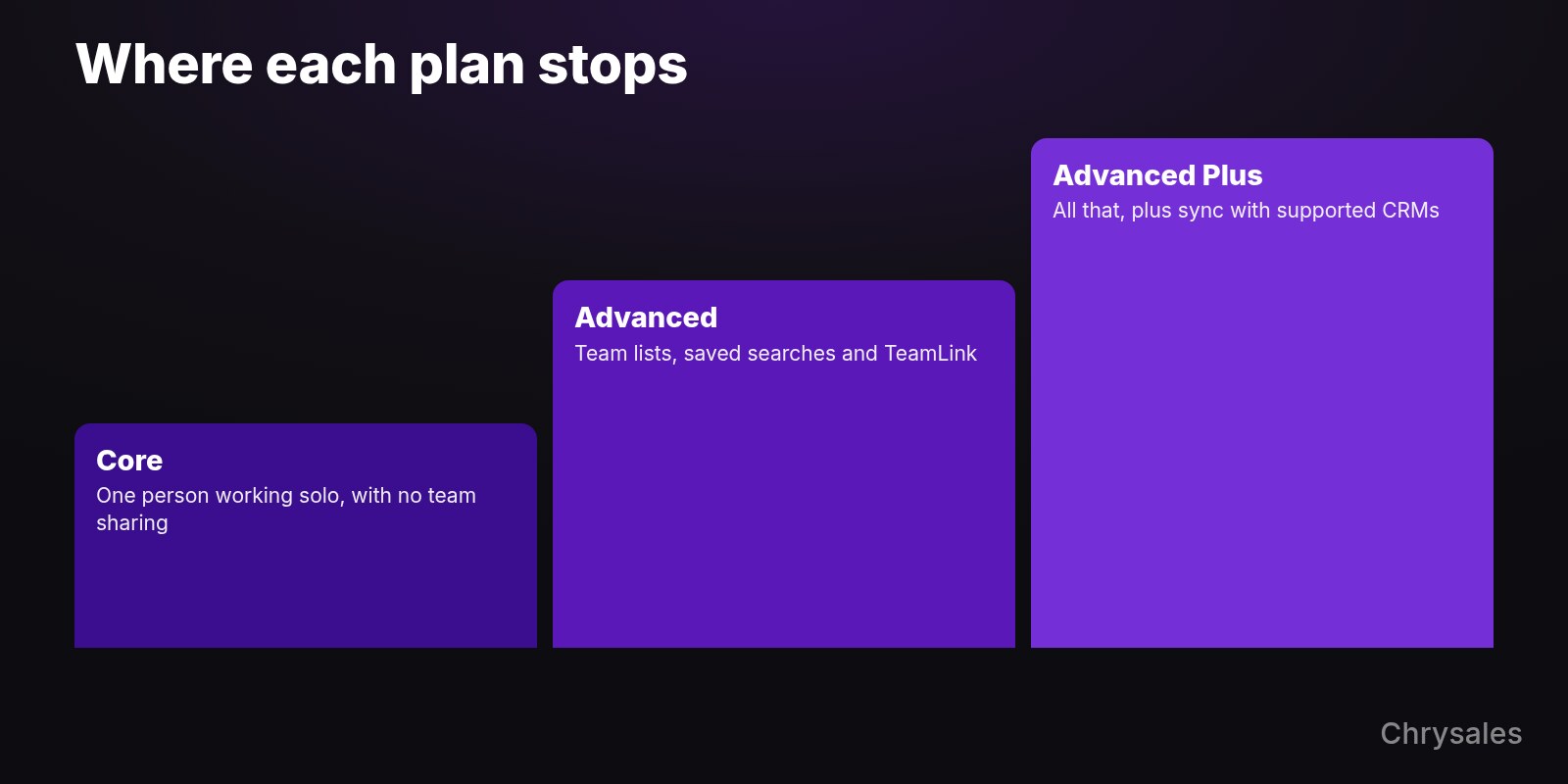
Only pay for Advanced Plus if you need it synced with your CRM, the place where you keep customers and deals. That sync works with HubSpot, Salesforce, Microsoft Dynamics 365 and Oracle Sales.
You can share a list only with sellers at your company who have a seat on its account. So two reps who each bought Core, the solo plan, can't share with each other. For each list, pick who can look and who can make changes.
TeamLink is the "who knows whom" feature. It shows when someone at your company is directly connected to a buyer.
It's on by default and lets your team see each other's direct connections. Tell them up front that it's on, and that they can opt out.
TeamLink Extend is a separate license for colleagues without a full seat. If they say yes, your sellers can see which buyers they know and ask for an intro.
In a LinkedIn customer story, PA Consulting had no separate sales team. It used TeamLink to find introductions through its own consultants. A small team can ask the same thing: who here already knows this buyer?
Give every account one owner
Give each target account one owner and one backup. The owner is the person who writes to buyers there, and everyone else checks before they do.
When reps work alone, says LinkedIn trainer Mandy McEwen, the team ends up with "duplicated outreach to the same accounts". McEwen's fixes include a shared tracker and a 15-minute team check-in each week.
A shared sheet is enough to start. Pin this note where your team talks:
WHO WRITES TO WHOM

Our account sheet: [link]
1. Each company has one owner and one backup.
2. Check the sheet before you message anyone there.
3. Someone else's name? Ask them first.
4. No name? Add yours, then send.
5. Owner away or gone? The backup takes over.

Only [name] can settle a clash or change an owner.
Last updated: [date]
Start small, with account-based selling to about 20 companies. Leads who come to you need a rule too, and that is the job of lead routing for a small team.
In this video, Sabir walks through three sales systems: outreach, closing and scaling. It isn't about Sales Navigator, but the scaling part covers adding people without more chaos.
When someone joins or leaves
When someone joins, give them their own seat and a share of the accounts. When someone leaves, do the handover before their last day, then move the seat to the next person.
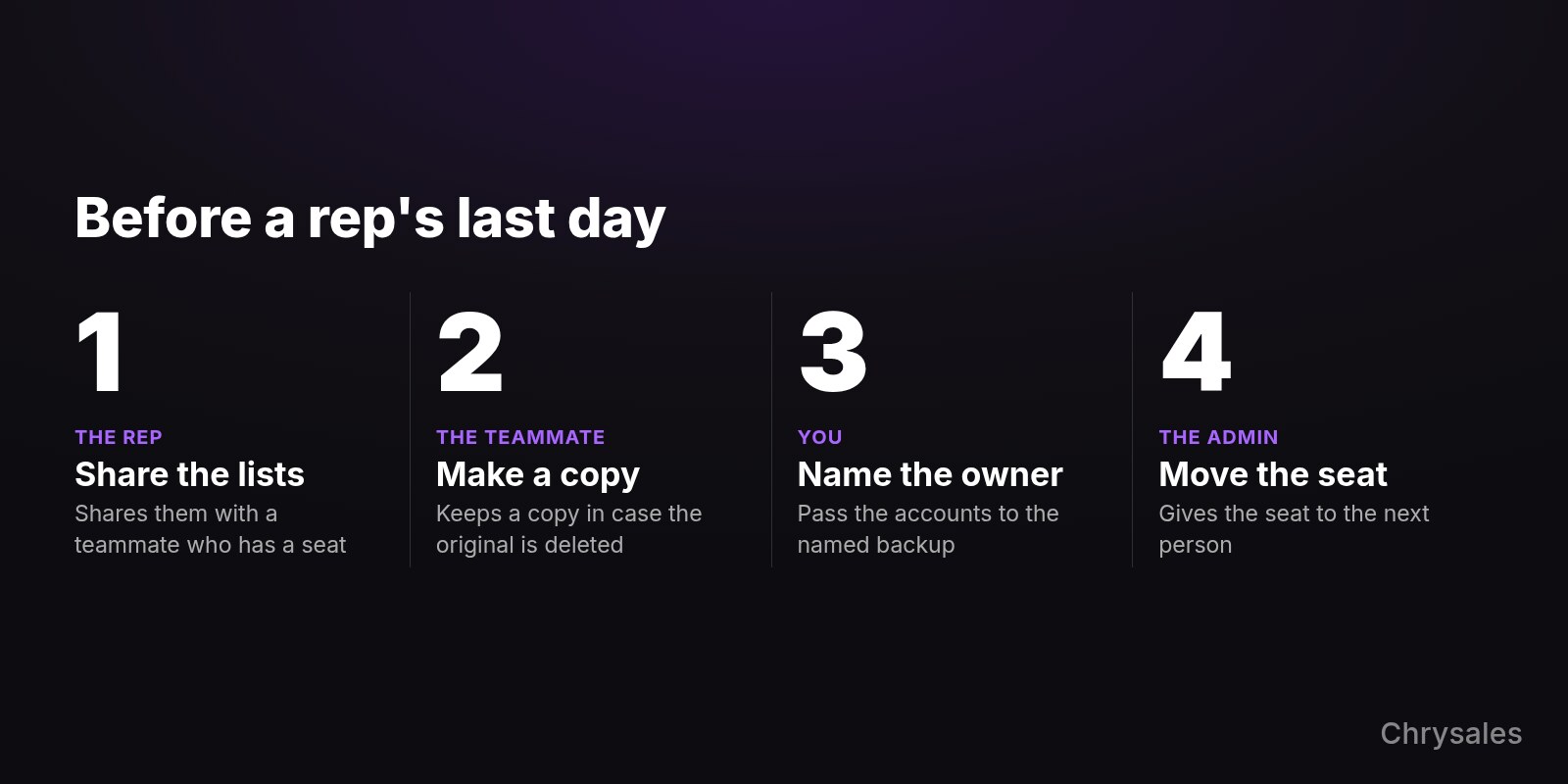
Lists that were shared with you stay open to you after the person leaves. But you lose a list if its creator deletes it, which is why you want your own copy. A copy can miss some profiles, so compare the two.
LinkedIn can limit how often a seat moves, so don't rotate one seat between people.
If you run the company, make the first purchase yourself. You can buy up to five Advanced seats online as of November 2026.
Whoever makes that purchase by card becomes an admin who can't be removed. Only that admin can buy or return seats on the plan.
Changing that admin takes a new subscription and a data move. So don't let it be a rep who may quit.
For the new person, make the owned accounts part of their first 90 days as a rep.
Conclusion: Start with the people who prospect
Begin with whoever finds and contacts new buyers now.
- Write down the names of the people who do it most weeks.
- Agree what would make a seat worth keeping, such as calls booked.
- Buy seats for those names only.
- Put an owner next to your first 20 accounts.
- Look again after 60-90 days and drop what sits unused at renewal.
The 60-90 day window is a suggestion, and a longer test can make sense. In another LinkedIn customer story, the distributor Manutan ran a six-month pilot, or test run, before buying for its whole sales team. Manutan also agreed how to measure the test first.
Adding people to outreach and don't want to referee who writes to whom? On a free strategy call, Chrysales can go through who prospects, who owns each account and how the work gets handed over. Plan your team's outreach on a free call

On a Sales Navigator team, each person who works in the tool needs their own seat. A seat is paid access for one named person. Buy seats for the people who prospect, meaning they find and message new buyers. To share lists, they need one of the two team plans, Advanced or Advanced Plus.
Then agree who owns each target account, meaning each company you want to win. Do it early, before two of your people write to the same buyer.
Can a team share one login?
No, a team can't share one login. The rules you accept when you join LinkedIn are plain: "You will not share your account with anyone else". The business terms also ask for one named person per seat.
That rules out the easy shortcut, where your assistant logs in as you. As we read those two rules, an assistant who searches or sends messages needs a seat on their own profile.
Brynne Tillman, CEO of Social Sales Link, gives the same advice: "Do not let anyone log into your account".
Paying for a seat doesn't make the profile yours, either. Your company can control the paid seat and get reports on it. Each person's LinkedIn account still belongs to that person.
Freelancers need a closer look. Unless your contract says otherwise, seats are for staff you name, plus contractors you pay directly for work done only for you. A setter (someone who books sales calls) with several clients may not count, so check your contract.
Who on your team needs a seat
Give a seat to anyone who searches, saves buyers or sends messages in Sales Navigator most weeks. Someone who only looks after the bill can do without one.
Say you run a 30-person B2B company. This made-up team shows how it could work:
| Person | Paid seat? | Why |
|---|---|---|
| Founder | If still selling | Finds and messages some buyers |
| Sales rep | Yes | Works a list every week |
| Setter | Yes | Writes to buyers from their own profile |
| Assistant | If searching or messaging | Can't use the founder's login |
| Office manager | No | Only handles users and billing |
Admin-only access doesn't use up a paid seat. The catch is that those admins can't open shared lists. Neither can someone whose access is only for usage reports.
Ask each person what they did last week. If none of it was finding or messaging buyers, hold off on that seat. Those who get one need to know how to set up their searches.
What your Sales Navigator team can share
Your team can share buyer lists and saved searches, and see who knows whom. All of it needs Advanced or Advanced Plus, as of November 2026.
Only pay for Advanced Plus if you need it synced with your CRM, the place where you keep customers and deals. That sync works with HubSpot, Salesforce, Microsoft Dynamics 365 and Oracle Sales.
You can share a list only with sellers at your company who have a seat on its account. So two reps who each bought Core, the solo plan, can't share with each other. For each list, pick who can look and who can make changes.
TeamLink is the "who knows whom" feature. It shows when someone at your company is directly connected to a buyer.
It's on by default and lets your team see each other's direct connections. Tell them up front that it's on, and that they can opt out.
TeamLink Extend is a separate license for colleagues without a full seat. If they say yes, your sellers can see which buyers they know and ask for an intro.
In a LinkedIn customer story, PA Consulting had no separate sales team. It used TeamLink to find introductions through its own consultants. A small team can ask the same thing: who here already knows this buyer?
Give every account one owner
Give each target account one owner and one backup. The owner is the person who writes to buyers there, and everyone else checks before they do.
When reps work alone, says LinkedIn trainer Mandy McEwen, the team ends up with "duplicated outreach to the same accounts". McEwen's fixes include a shared tracker and a 15-minute team check-in each week.
A shared sheet is enough to start. Pin this note where your team talks:
WHO WRITES TO WHOM

Our account sheet: [link]
1. Each company has one owner and one backup.
2. Check the sheet before you message anyone there.
3. Someone else's name? Ask them first.
4. No name? Add yours, then send.
5. Owner away or gone? The backup takes over.

Only [name] can settle a clash or change an owner.
Last updated: [date]
Start small, with account-based selling to about 20 companies. Leads who come to you need a rule too, and that is the job of lead routing for a small team.
In this video, Sabir walks through three sales systems: outreach, closing and scaling. It isn't about Sales Navigator, but the scaling part covers adding people without more chaos.
When someone joins or leaves
When someone joins, give them their own seat and a share of the accounts. When someone leaves, do the handover before their last day, then move the seat to the next person.
Lists that were shared with you stay open to you after the person leaves. But you lose a list if its creator deletes it, which is why you want your own copy. A copy can miss some profiles, so compare the two.
LinkedIn can limit how often a seat moves, so don't rotate one seat between people.
If you run the company, make the first purchase yourself. You can buy up to five Advanced seats online as of November 2026.
Whoever makes that purchase by card becomes an admin who can't be removed. Only that admin can buy or return seats on the plan.
Changing that admin takes a new subscription and a data move. So don't let it be a rep who may quit.
For the new person, make the owned accounts part of their first 90 days as a rep.
Conclusion: Start with the people who prospect
Begin with whoever finds and contacts new buyers now.
- Write down the names of the people who do it most weeks.
- Agree what would make a seat worth keeping, such as calls booked.
- Buy seats for those names only.
- Put an owner next to your first 20 accounts.
- Look again after 60-90 days and drop what sits unused at renewal.
The 60-90 day window is a suggestion, and a longer test can make sense. In another LinkedIn customer story, the distributor Manutan ran a six-month pilot, or test run, before buying for its whole sales team. Manutan also agreed how to measure the test first.
Adding people to outreach and don't want to referee who writes to whom? On a free strategy call, Chrysales can go through who prospects, who owns each account and how the work gets handed over. Plan your team's outreach on a free call
Scaling Is Not Hard If You Have The Right Systems
If you’re serious about leveling up your scaling game, you need the right system, the right training, and the right team behind you. We're here to give you the exact tools and strategies top entrepreneurs use to dominate.

Discover the latest tips
View All
Chrysales was formed from the words "chrysalis" the stage where a caterpillar transforms into a butterfly and "sales".
It stands for one thing: sales transformation.Because scaling doesn’t happen by doing more of the same. Scaling only happens when you go through real transformation in your systems, your offer, team and the way you sell.


